Station tracking
Each department sees what it received, what it holds and what it sent out, by card and weight. Wrongly delivered cards are returned, and rejects are split off from the card.
↑↓ to selectEnter to openEsc to close
Manage production processes in one system.
Connect and track inventory in real time.
Keep product data organized.
One system · Many possibilities
Connects production, warehouse and product data in one integrated flow, so teams work in closer sync.
One card's journey
Scroll down and follow card F202609000004. At each stage, the screen shows what MES and WMS record.
01 / 05 · MES
Order ORD-24-101 creates a card of 10 pcs. The barcode label is printed and travels with the products.
02 / 05 · MES
Knitted from 2/26 yarn on 12G gauge, then moved to the Sewing dept on transfer note P20260900002. Quantity and weight are checked on receipt.
03 / 05 · MES
Workers scan their card to report the operations they completed. Pay is calculated automatically per card.
04 / 05 · MES
A "dropped stitch" nonconformity is found on 2 pcs. The card is split into 8 + 2, and the 2 pcs move to rejects.
05 / 05 · WMS
The 8 pcs that passed are handed over to the warehouse. WMS prints an RFID chip for each product, boxes them and places them in a shelf bin.
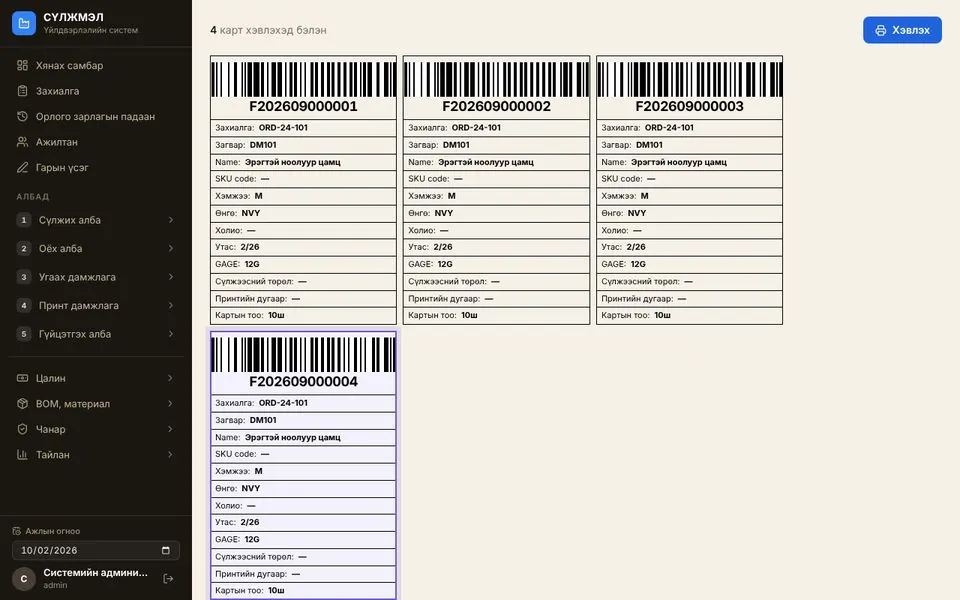
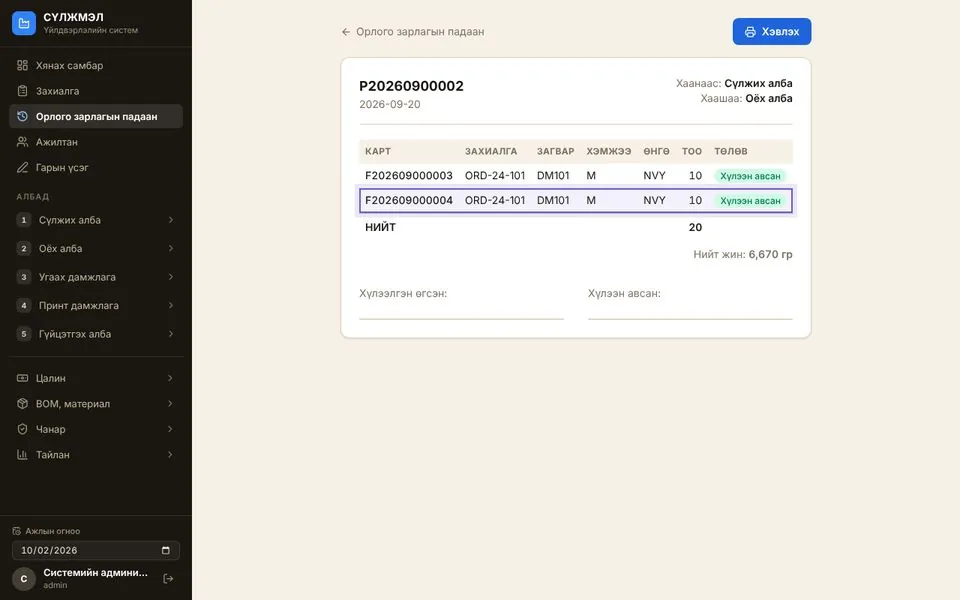
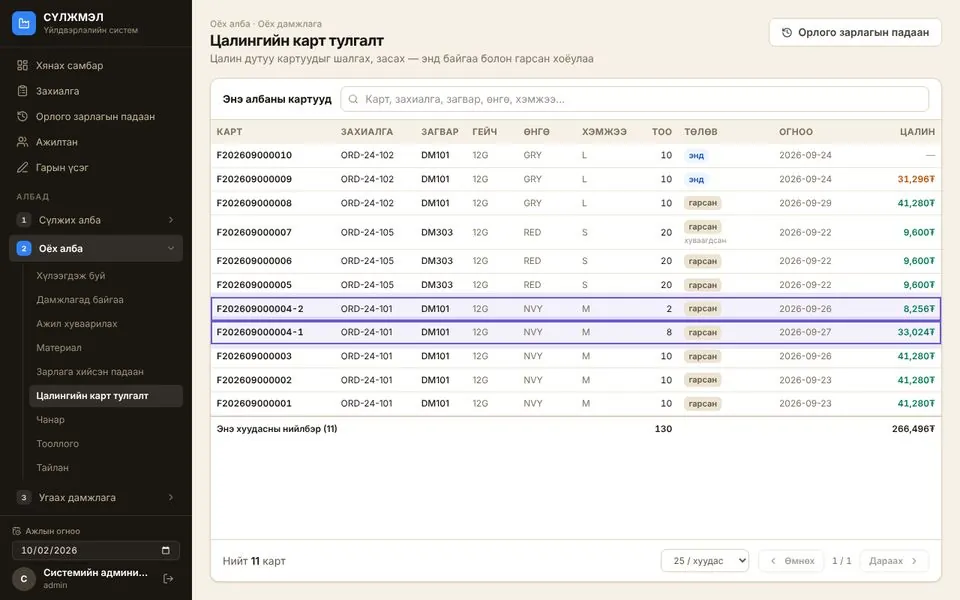
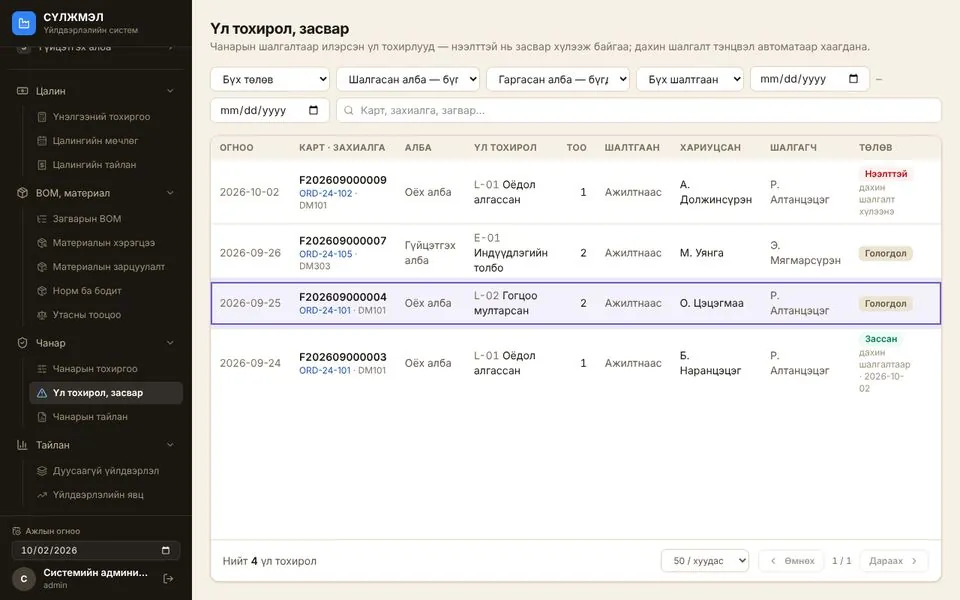
Try it yourself
Each click moves card F202609000004 to the next department. Location, quantity and status update just as they would in the system.
MESThe order is split into cards
Order ORD-24-101 creates a card of 10 pcs. The barcode label is printed and travels with the products.
Savings calculator
Enter your own numbers to compare time spent on manual entry versus card scanning. The values in the fields are only examples — the formula is shown below.
Hours saved per month
0 working days (8 h) · 0 ₮
Manual = cards × stages × minutes ÷ 60 + workers × pay calculation minutes ÷ 60
Card = cards × stages × seconds ÷ 3600 + workers × pay check minutes ÷ 60
Savings = Manual − Card
How to start
Timeline and pricing are agreed together, based on the scope of your plant.
Try the demo yourself, then we talk through the needs of your production floor and warehouse.
We measure today’s performance: pieces per labour hour, rejects and time spent on record-keeping.
Data model, routes, units, permissions and integrations are configured and piloted in one area.
Users are trained and go live. A follow-up measurement compares the results with the baseline.
Check it before you decide
We do not promise a productivity figure up front — baseline and follow-up measurements confirm it.
MES
Connects materials, operations, quality and worker performance in one flow.
Industry profiles · modes
Based on the knitwear demo · other industry profiles are development proposals
How it works
Tap a step to see who does what and what the system records.
Every card scan is recorded by the system — nothing is written by hand.
Pay
Standard hours × rate × quantity
Materials
Yarn issue, BOM, waste
Progress and reports
Work in progress, rejects
Order
Card
Stations
Quality
Warehouse
Monthly pay cycle
Per department, every month
Calculating warns about cards with missing pay. Approval is for management only. A closed month cannot change; to fix it, step back one stage.
The reject branch
Example: a card of 20 pieces
Quality check
Passed → next department
Nonconformity: type, quantity, worker
Repairable: repair ↻ re-inspection
Not repairable: split the card
18 pieces → warehouse
2 pieces → rejects
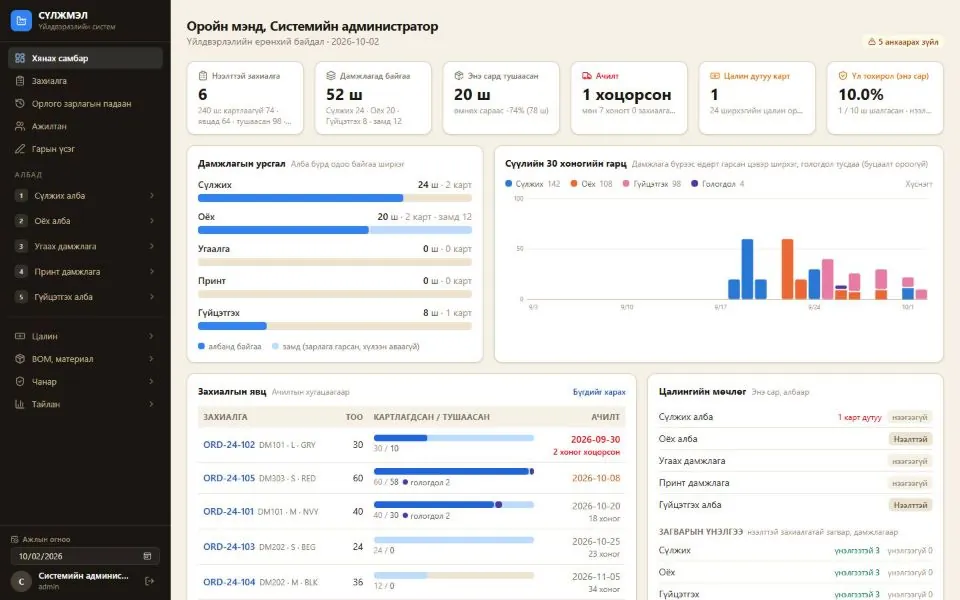
See from one place which order is waiting at which stage, and in what quantity.
Link checks, rejects, rework and re-checks to production performance.
Separate out waiting, delays between workstations and underperformance to target improvements.
Reconcile BOM, actual consumption, stock balances and worker performance to explain variances.
Set the production and warehouse steps, owners, data and metrics.
Set up links between SKUs, units of measure, locations, operations and BOM versions.
Choose the ERP and device interfaces, then test transactions and data reconciliation.
Start with one workshop and one warehouse, compare against baseline KPIs, then expand the scope.
Production modes, industry data and specialized modules are configured on a common MES core.
Industry MES profiles
From knitwear to precision assembly
Production modes
Card, make-to-order, assembly, batch, continuous, project
WMS user roles
Admin, manager, storekeeper, accountant, print operator
Solutions and ERP integration
MES · RFID WMS · PLM (coming soon)
Industry profiles are recommended configurations, not an actual system setup or implementation.
We build connectors for the ERP's API, file exchange or approved interfaces, and for device gateways.
Built on the ERP's approved API, file import/export or a middleware connection.
Define which system creates and which system uses SKUs, units of measure, locations, order numbers and BOM versions.
Apply rules to detect duplicate transactions, reprocess faulty data and reconcile totals between systems.
Sending control commands to machines requires separate approval and safety checks.
ERP consolidates the business plan, MES the production execution, WMS the physical movement of goods, and PLM the product archive and Tech Pack.
| Data / role | ERP | MES | RFID WMS | PLMcoming soon |
|---|---|---|---|---|
| Planning, costing, finance | Owns | |||
| Production orders, deadlines, material requirements | Owns | Receives and uses | ||
| Completed quantities, consumption, rejects, hours worked | Receives and uses | Owns | ||
| Purchase, sales and transfer orders | Owns | Receives and uses | ||
| Confirmed receipts/issues/transfers, stock balances | Receives and uses | Owns | ||
| Material requirements, finished goods data | Owns | Receives and uses | ||
| Confirmation of issues, returns and receipts | Receives and uses | Owns | ||
| Product archive, Tech Pack, packaging and labeling instructions | Receives and uses | Receives and uses | Owns |
RFID WMS
Links RFID tags, boxes and shelf locations to orders, and manages warehouse receipts, issues and internal transfers.
How it works
Tap a step to see who does what and what the system records.
Every RFID scan links chip → box → bin.
Stock on hand
By location and product
Movement history
Box contents are kept
Discrepancies
Ordered versus actual
Print and tag
Pack
Movement
Match and confirm
Put away
Chip status
The life of one chip
A chip whose TID was not written becomes a “Print error” and is reprinted. Cancelled or damaged chips become “Void”.
Who does what
5 roles
Order ↔ actual quantity
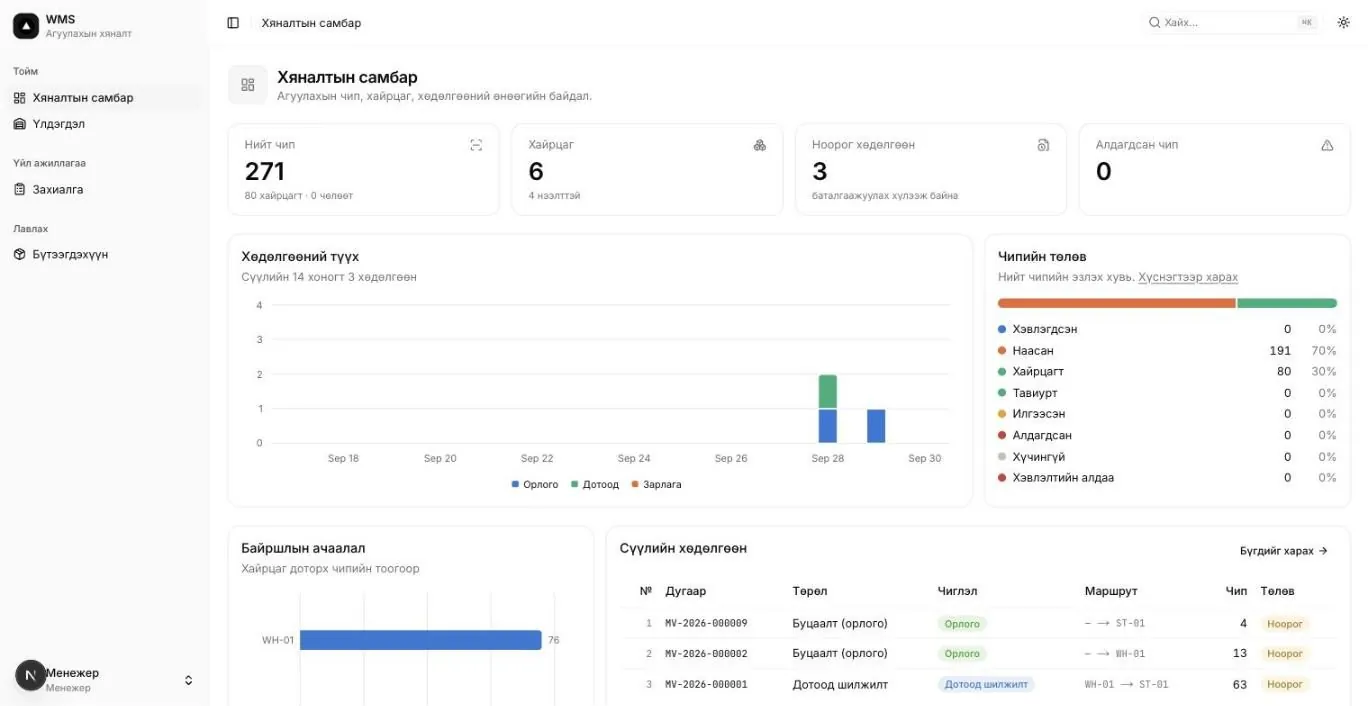
Location, movement, reconciliation and printing screens.
User roles
Admin, manager, storekeeper, accountant, print operator
Tracking level
Chip → box → bin · RFID / EPC / TID
Three key screens from the user guide.
Chapter 1 · Figure 1.4
Register warehouse, store, supplier, customer and transit locations, and organize the internal layout as rack → shelf → bin.
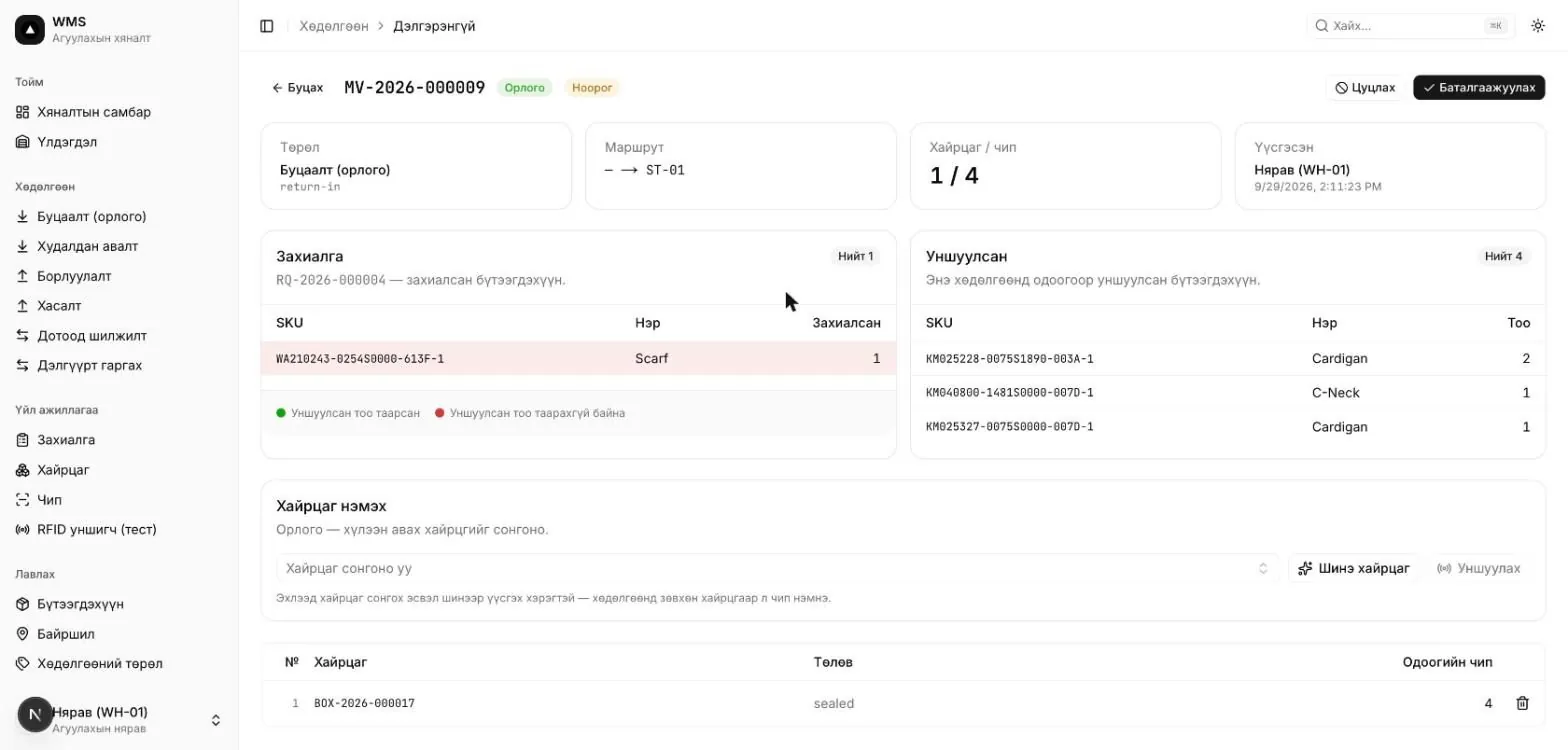
Chapter 3 · Figure 3.4
The storekeeper creates a draft movement and adds boxes. It is confirmed once the ordered and scanned product quantities match.
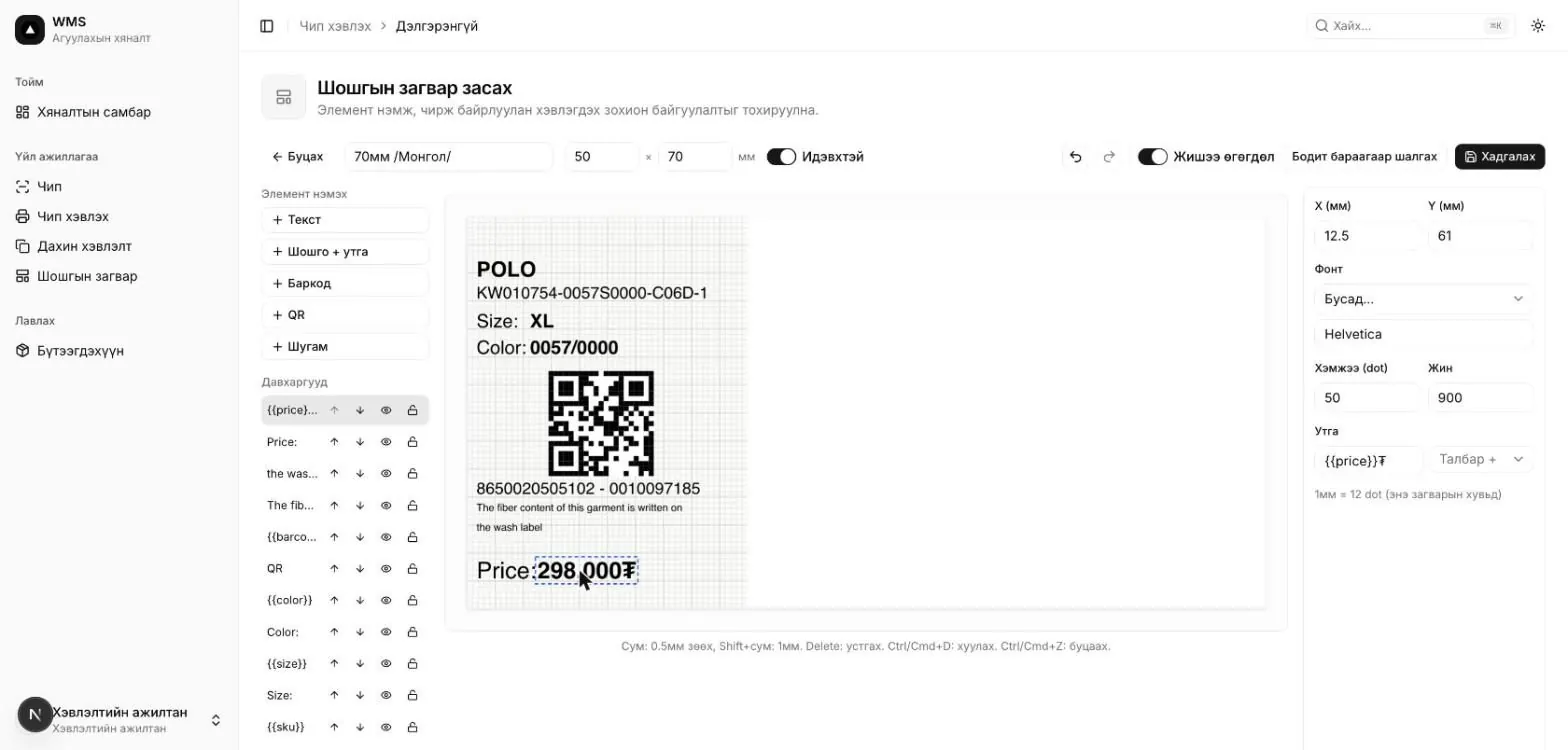
Chapter 4 · Figure 4.5
Print jobs run in sequence and assign EPCs. Select the printer IP and label template, and log the TID and print progress.
PLM · Coming soon
A solution that keeps product designs, sizes, materials and Tech Packs in one archive and passes them to MES orders. Currently in development.
Plan
The team will confirm and fill in the timing and sequence.
[TIMING]
Store and find designs, images, size charts and material lists in one place.
[TIMING]
Create versioned technical documents for each design and share them with the factory.
[TIMING]
Tech Pack materials and BOM flow directly into MES orders and cards.
[TIMING]
Feedback, revisions and approvals between designers, technologists and the factory, in one flow.
Waitlist
Your message could not be sent. Check your connection and try again, or send your details by email.
Sorry, we couldn’t receive your request right now. Please try again shortly, or send your details by email.
Email info@mmu.mn insteadWe’ll let you know when PLM launches.
About
MMU LLC supplies and implements software and automation solutions for manufacturers. Each solution is configured to the plant’s own workflow and rolled out with training.
ERP consolidates the business plan, MES the production execution, WMS the physical movement of goods, and PLM the product archive and Tech Pack.
Key differences to help you choose.
No. ERP works at the level of business planning, purchasing, finance and inventory. MES manages the details of shop-floor work, materials, quality and performance, linking the plan to actual production.
Your choice only shows a suggested profile. Implementation requires a data model, routings, units of measure, permissions, integrations, testing and training. Capabilities for other industries should not be treated as ready-built.
We can't promise a figure in advance. It is determined by comparing baseline and follow-up measurements of the same scope, along with product mix, person-hours, quality and capacity conditions.
Scanned items are packed into a box and, where needed, matched against the request. Once the storekeeper confirms, the box and chip locations and statuses are updated.
The user guide states that confirmed movements are not cancelled. Errors are corrected with a new movement in the opposite direction. Draft movements can be cancelled.
The user guide covers setting the RFID reader's IP:port and the printer's IP. Device compatibility and the ERP connection are verified and implemented through the interfaces of each environment.
Real returns are assessed with a baseline measurement and the change that follows.
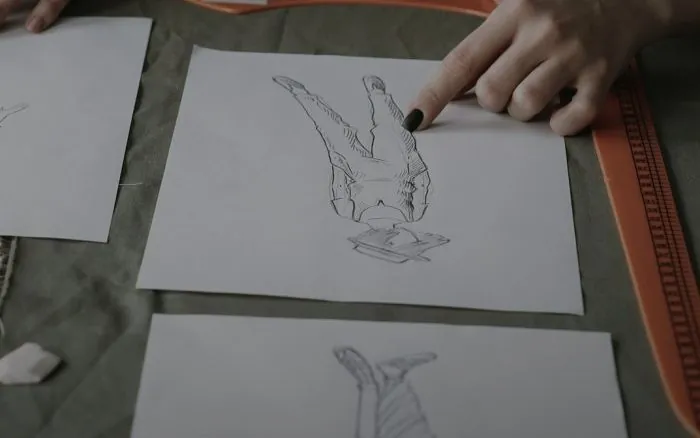
PLM · Product archive
Find product images, descriptions and related documents in one archive.
Measure: time to find one product's information
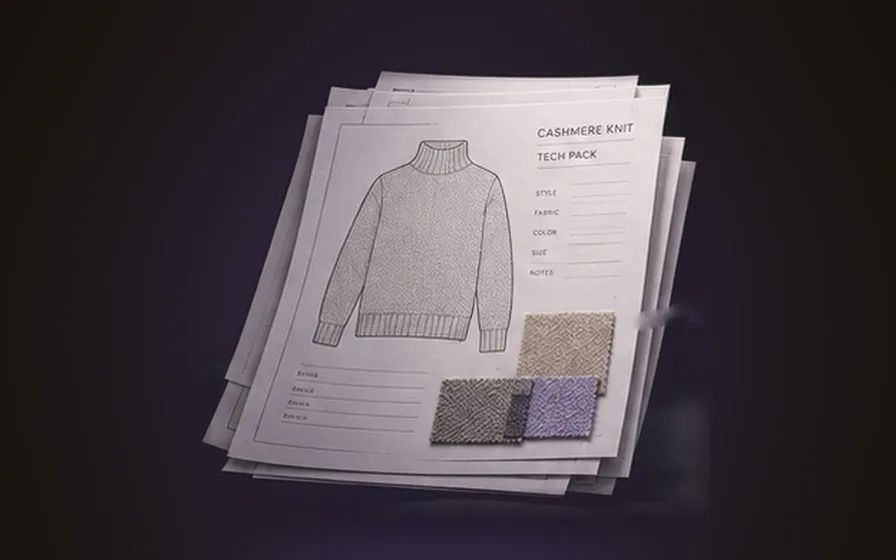
PLM · Tech Pack
Drawings, measurements, size charts and making instructions in a single Tech Pack.
Measure: number of Tech Packs with missing information
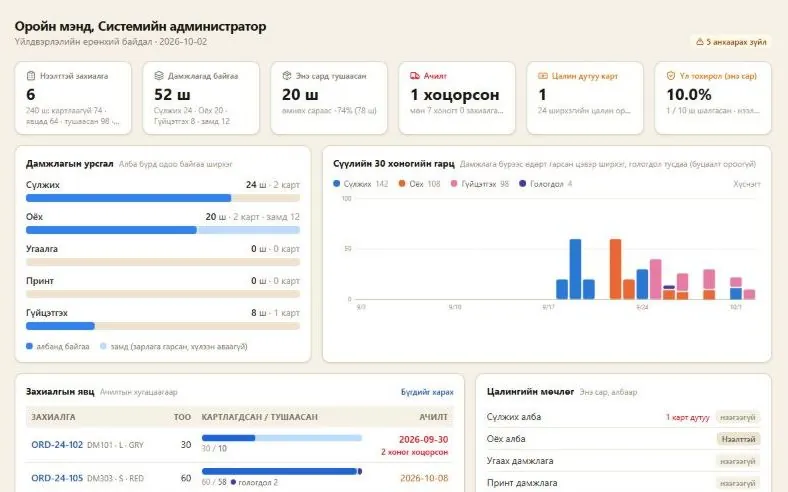
MES → ERP
Good output, person-hours, rejects and rework are measured from actual performance.
Measure: pcs/person-hour, rejects %, OEE*
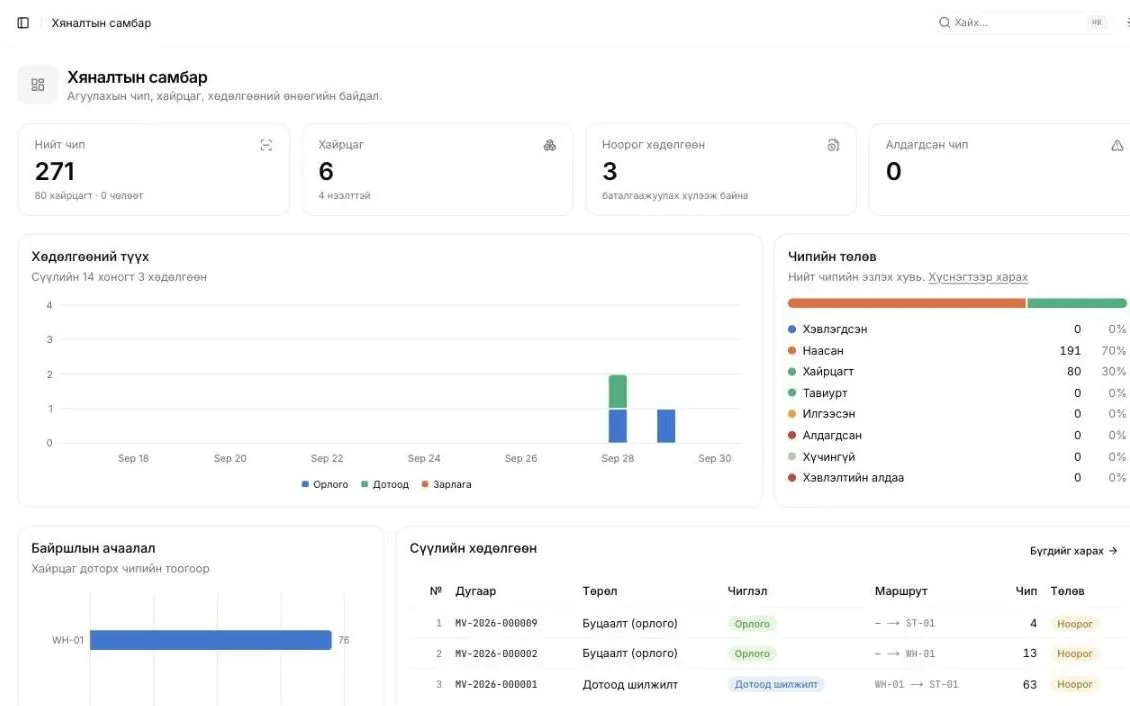
RFID WMS → ERP
Inventory is reconciled using chip and box locations and confirmed movements.
Measure: inventory accuracy, time to find items
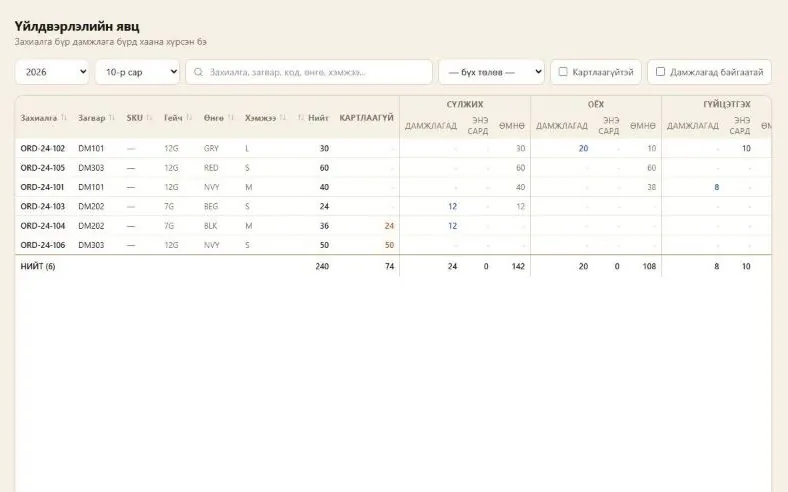
ERP + MES + WMS
Order deadlines, production progress and warehouse preparation are tracked together.
Measure: on-time delivery, order cycle time
MES + WMS → ERP
Standard–actual variance is explained with issue, consumption, return and reject data.
Measure: consumption per unit, scrap cost
* Measuring OEE requires machine run time, speed and good/total output data, plus a suitable integration.
Contact
Let's define your production and warehouse needs together.
Your message could not be sent. Check your connection and try again, or send your details by email.
Sorry, we couldn’t receive your request right now. Please try again shortly, or send your details by email.
Email info@mmu.mn insteadWe have received your request and will be in touch soon.
Legal
Last updated: 9 Oct 2026
MMU LLC (“we”) is responsible for the personal data collected through this website. You will find our contact details in the section.
We do not collect sensitive data (health, religion, biometrics and the like). Please do not enter it in the forms.
We never sell your data, make it public or use it for any other purpose without your consent.
We process your data on the basis of the consent you give when you tick the box on a form, under the Law of Mongolia on Personal Data Protection. If you are in the EU or EEA, this is consent under Article 6(1)(a) GDPR. The statistics contain no data that identifies you.
A form-handling service, our web host and Plausible Analytics process data on our behalf to run the website. Their servers may be located outside Mongolia; by sending a form you agree to this transfer. We do not pass your data to anyone else unless the law requires it.
We keep contact enquiries for 24 months after they are resolved and waitlist entries for 6 months after PLM launches, or less if you ask us to delete them. After that the data is deleted or made anonymous.
Send your request to the email shown in the section. If you believe your rights have been breached, you can complain to the National Human Rights Commission of Mongolia; in the EU or EEA, also to your local data protection authority. EU and EEA residents additionally have the rights to restrict processing, to data portability and to object.
The website runs over HTTPS. Only the staff responsible can access form data. If a data breach could affect you, we will tell you without delay, as the law requires.
Whenever we update this policy we change the date above. We will point out significant changes clearly on the website.
This website sets no cookies, so it does not ask for cookie consent.
Your browser’s local storage keeps only the settings you choose: the “Pause motion” option and the state of the demo window. This never leaves your device, and you can clear it in your browser settings at any time.
The information on this website introduces the EMG suite solutions. Prices, scope and timelines are set in a written agreement between the parties.
The demo shows saved screens of the real system with sample data; nothing you change is stored. The savings calculator works from the numbers you enter and is not a guaranteed result.
The text, design, screenshots and videos on this website belong to MMU LLC. Copying, modifying or using them commercially without written permission is not allowed. Third-party libraries used on the site (three.js, GSAP, NumberFlow) are covered by their own licences.
We work to keep the information accurate but cannot guarantee it is free of errors or always available. We are not liable for indirect loss arising from decisions based on it.
These terms are governed by the laws of Mongolia.
Knitwear · Production system
The Knitting, Sewing and Finishing departments each receive cards by scanning their barcodes and pass them on with transfer notes. Pay, quality and material consumption are calculated automatically from those records — no double entry, no manual calculations.
27-step walkthrough · 85 screens · move freely through the menu; clicking buttons does not save data.
One card's journey
Every card has a barcode label. All departments, kiosks and stock counts scan only this barcode; numbers are never typed by hand.
01 / 06 · MES
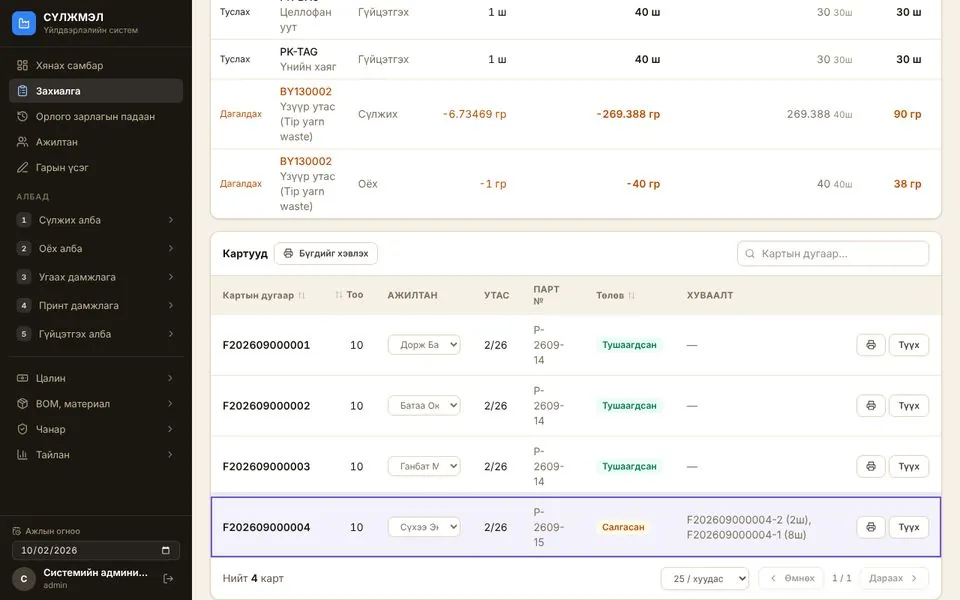
Order ORD-24-101: 40 pcs, shipping 10/20. The system splits it into 4 cards of 10 pcs and tracks each card's route separately.
02 / 06 · MES
Each card's label is printed and assigned to a knitter. From then on, departments, kiosks and stock counts scan only this barcode.
03 / 06 · MES
Transfer note P20260900002 moves it from the Knitting dept to the Sewing dept. Quantity and weight are checked on receipt.
04 / 06 · MES
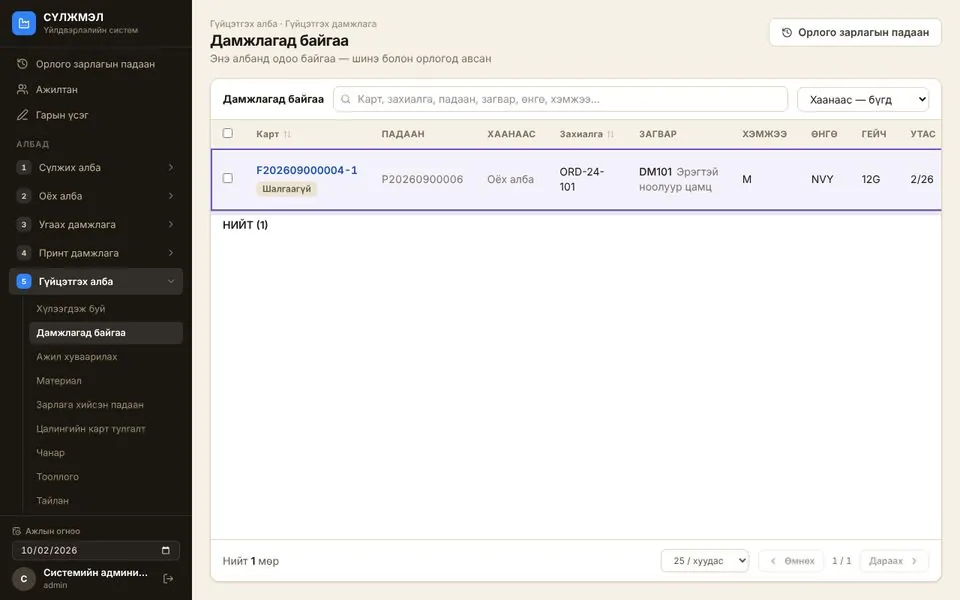
Inspection after sewing is mandatory. A "dropped stitch" nonconformity is found on 2 pcs, and the card is split into 8 + 2.
05 / 06 · MES
Card F202609000004-1 with 8 pcs arrives at the Finishing dept on transfer note P20260900006. Washing, pressing, labelling and packing are done here.
06 / 06 · MES
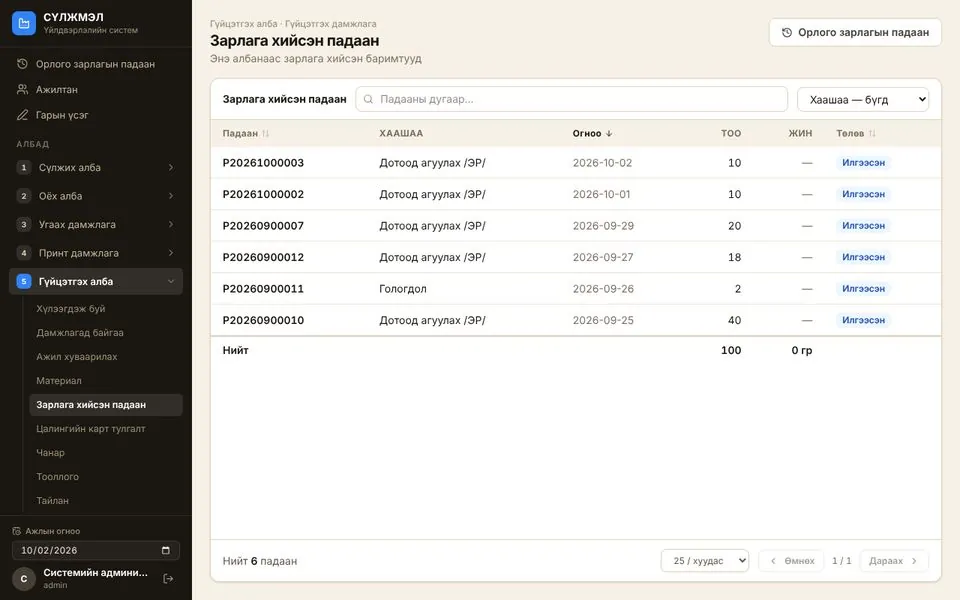
Finished goods are handed over to the internal warehouse with a transfer note. The quantity handed over shows up in order progress immediately: 30 pcs of ORD-24-101 handed over.
Modules
Each department sees what it received, what it holds and what it sent out, by card and weight. Wrongly delivered cards are returned, and rejects are split off from the card.
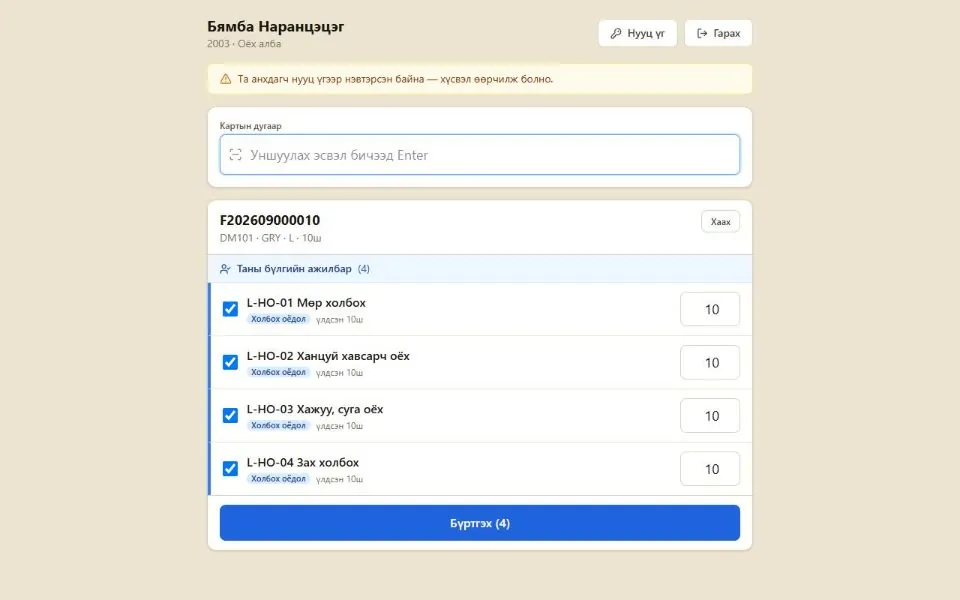
Workers scan their card and report their own work. Operations for their group are pre-checked, and quantities can't exceed the card's.
Inspections, nonconformities, responsible worker. A card that fails can't leave a department set to “mandatory”; anything that can't be fixed goes to rejects.
Body pay comes from card assignment; the rest is entered via the kiosk or by hand. Calculated, approved and closed every month; incomplete cards are flagged.
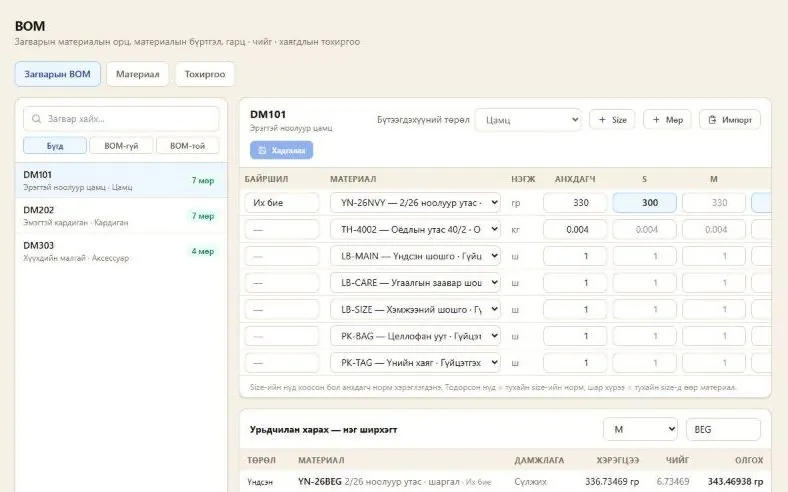
Style BOM by size and colour. Order requirements, consumption calculated from movements, yarn reconciliation per knitter, standard vs actual.
Work in progress, progress, pay, quality — all calculated from movements, never entered by hand.
Tour steps
Each step opens the matching demo screen. The explanations are the same as the tour inside the demo.
2 steps
Everyone signs in with their own role: supervisor, storekeeper, payroll accountant, quality inspector. Permissions are set per department — the Sewing supervisor can move only Sewing cards. Use the Next button to continue.
The factory's status on one screen: open orders, pieces in each department, output for the last 30 days (rejects shown separately), late shipments, and cards with missing pay. Every figure is calculated directly from daily records.
5 steps
Each order has a style, size, colour, gauge, quantity and ship date. Each line shows how many pieces have been split into cards, handed over and rejected. Click an order number to see the details.
The Knitting dept splits the order into cards (for example, every 12 pcs) and gives them to knitters. Material requirements are calculated from the style BOM by size and colour and locked when the cards are first created.
Every card has a barcode label. From then on, all departments, kiosks and stock counts scan only this barcode — no numbers typed by hand.
The supervisor gives the card to a worker. Body pay is credited automatically to the person assigned when the cards were created; tasks such as collars and cuffs are assigned here. Unfinished operations show as a yellow tag on each line.
Yarn is weighed and issued to knitters (minus the cone weight), and leftover and end yarn are taken back. Issued − returned − product weight = variance, reconciled for each knitter.
3 steps
Cards move between departments with transfer notes: the sending department issues them and records the weight, and the receiving department takes them in. Printed transfer notes carry the names of the people who sign them.
The Sewing dept sees the transfer notes sent to it and receives cards by scanning them. Wrongly delivered cards can be returned with a reason.
Cards currently in the department — where they came from, their weight and quality check status. From here you can issue cards out or split a card (for example, to separate rejects).
3 steps
Workers sign in to their department's kiosk with their own code. The accountant no longer has to enter everyone's work by hand.
Cards assigned by the supervisor are listed. Scanning a card's barcode shows the operations to perform.
Operations for the worker's own group are pre-checked. As soon as the quantity is confirmed, a pay line is created. An operation can't be reported for more than the card's quantity.
3 steps
The inspector scans the card and records a pass or a nonconformity (type, quantity, responsible worker). The Sewing dept is set to “mandatory”: a card that fails inspection can't move on to the next department.
A repaired nonconformity is closed by re-inspection. Pieces that can't be repaired are split off from the card and sent to rejects. Those caused by a worker count toward that person's quality record.
At Finishing, 2 pieces from a 20-piece card came out with pressing marks. The card was split into 18 + 2: 18 were handed over to the warehouse and 2 to rejects. Pay, weight and assignments are split by quantity.
1 step
The Finishing dept hands finished goods over to the warehouse. The quantity handed over shows up in order progress and on the dashboard right away.
4 steps
Checks whether every operation on each card leaving a department has been fully paid; gaps show in red. The supervisor or accountant fills them in here.
Monthly, per department: Open → Calculate → Approve → Close. On calculation, body pay is generated from assignments; if any card is incomplete, the system warns you.
A worker's monthly work, broken down by card and operation: quantity, standard time, rate, amount.
Consolidated monthly pay report for each department, with a printable version that includes a signature table.
4 steps
Shows by month how many pieces of each order are at each station, how many have left and how many were rejected.
Each department's monthly opening balance + receipts − issues = closing balance, by quantity and weight. Never entered by hand — calculated from movements.
Materials for each style: yarn (different weight per size, different yarn per colour), sewing thread, labels, packaging. Can be pasted in from Excel.
Compares standard consumption with actual issues and waste for each order, showing how much extra yarn was used.
2 steps
Operation catalogue, grades and rates, standard time per operation for each style. Pay is calculated from here: standard time × rate × quantity.
Workers, departments, operation groups (pre-checked in the kiosk), and whether someone is a quality inspector. The tour ends here — feel free to browse the other pages from the left menu.
Sample data: 6 orders, 17 cards, 14 workers, September–October 2026. Each screen is a saved copy of the real system — actions such as recording and printing work only in the real system.
A step-by-step, screen-by-screen walkthrough of the core flow, from registering locations to requests, movements and RFID chip printing.
The system has four main parts. Each part is handled by users in a different role.
| Role | Main responsibilities | Visible menu items |
|---|---|---|
| Admin | Manages locations, products, movement types and users. Only monitors operations. | All menus (view-only for operations) |
| Manager | Registers products and submits movement requests to the storekeeper. | Dashboard, Stock, Requests, Products |
| Warehouse storekeeper | Creates and confirms movements at assigned locations, packs boxes and organizes shelving. | Movements, Requests, Boxes, Chips, RFID readers, Locations |
| Accountant | Monitors stock and movements. No edit rights. | View-only menus |
| Print operator | Runs and confirms print jobs, reprints, and configures label templates. | Chips, Chip printing, Reprinting, Label templates |
ST-01 WH-01) appear at the top of the page.All users sign in from the same login page. The menu differs depending on the user's role.
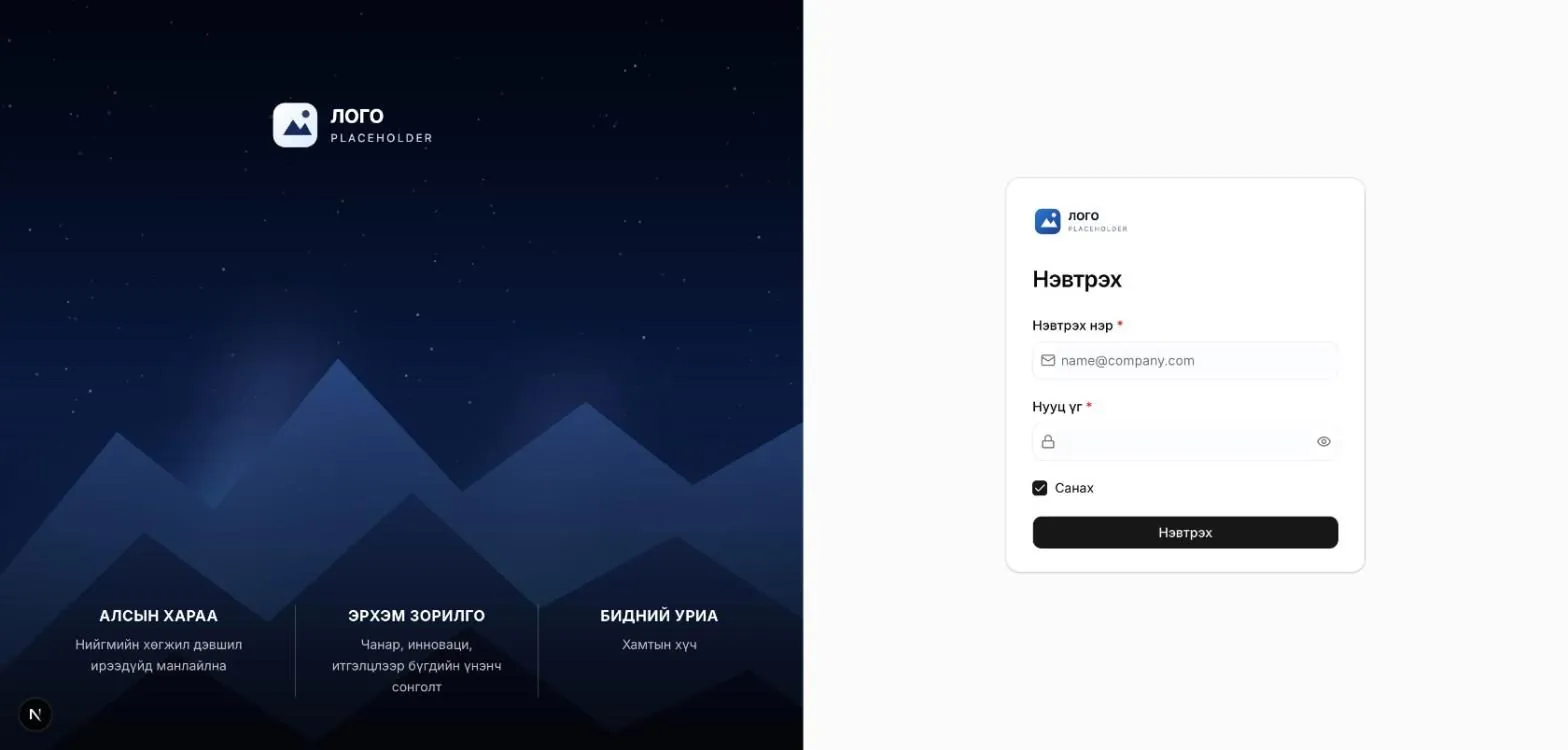
After you sign in, the Dashboard opens. It shows total chips and boxes, draft movements awaiting confirmation, the number of lost chips, movement history for the last 14 days, the breakdown of chip statuses, and recent movements.
Every movement is recorded between locations. So start by registering your warehouses, stores and partners, and set up the shelving structure inside each warehouse.
The Directory → Locations menu lists every location with its code, name, type, address, number of boxes inside and status. Search by code or name with the field at the top, and filter by type with the All types list.
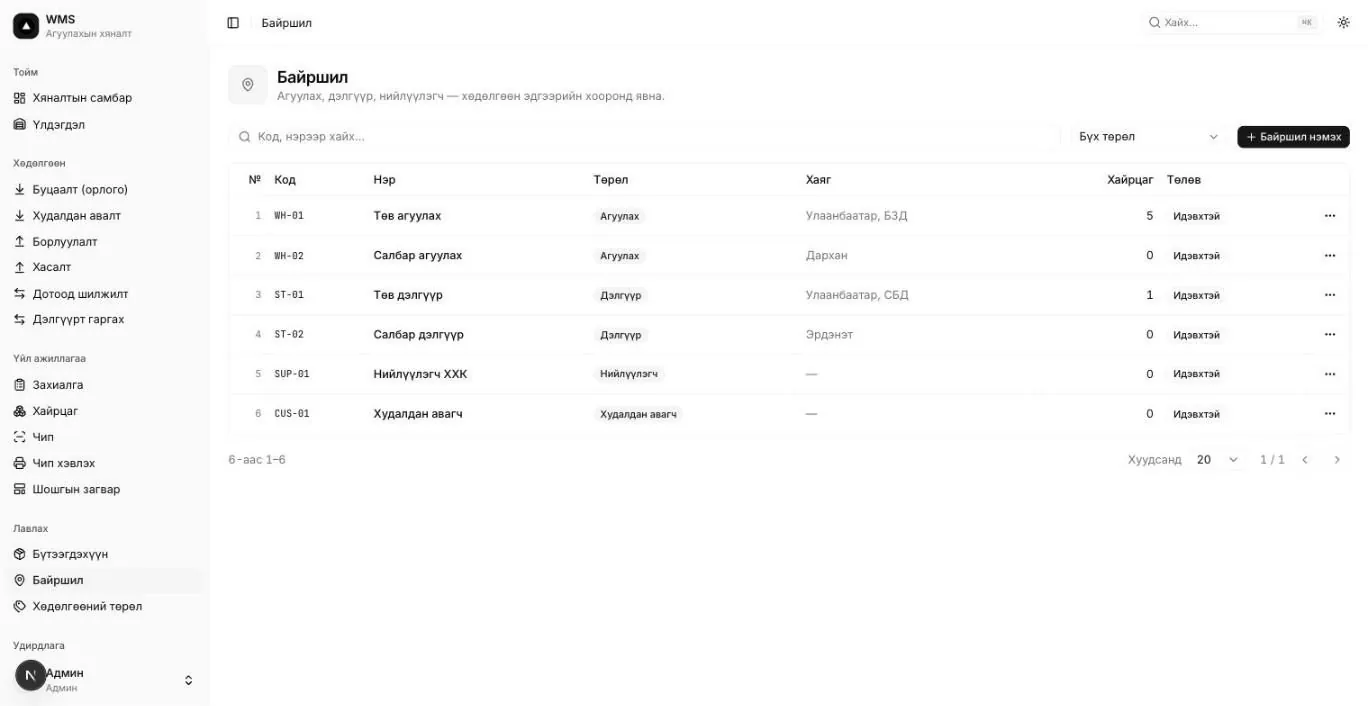
| Type | Example code | Meaning |
|---|---|---|
| Warehouse | WH-01 | Internal point for storing goods |
| Store | ST-01 | Internal point of sale |
| Supplier | SUP-01 | External party. Source of purchases |
| Customer | CUS-01 | External party. Recipient of sales |
| In transit | — | Intermediate point for goods in transit |
WH-03).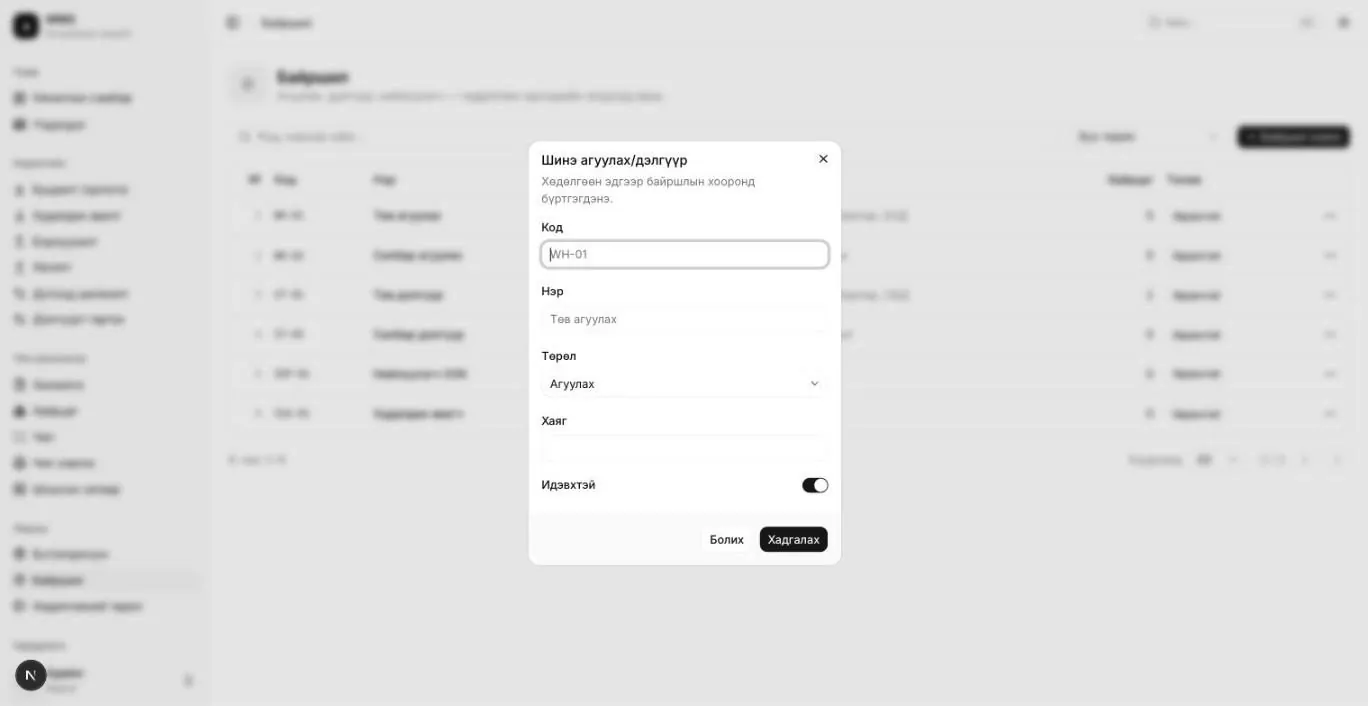
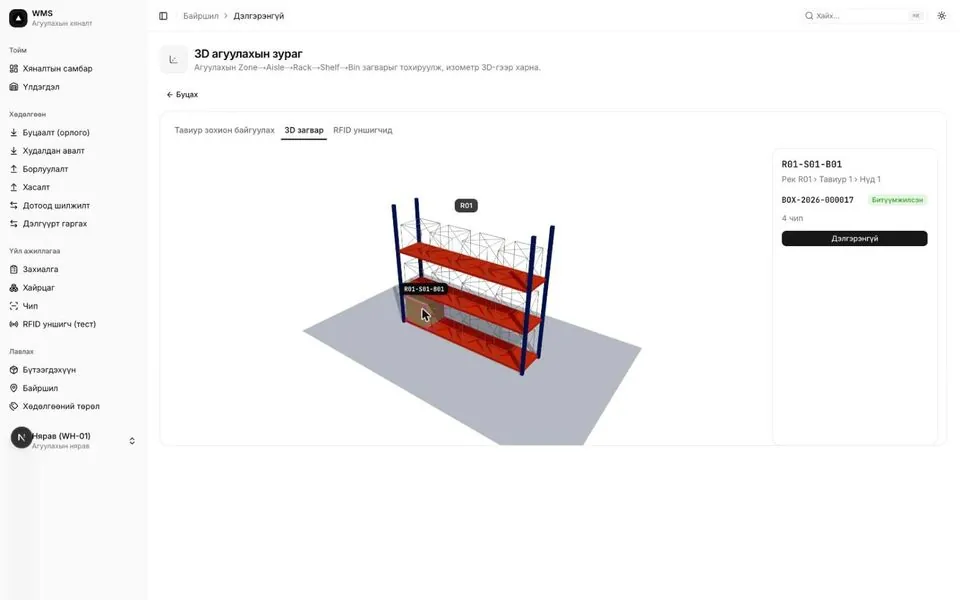
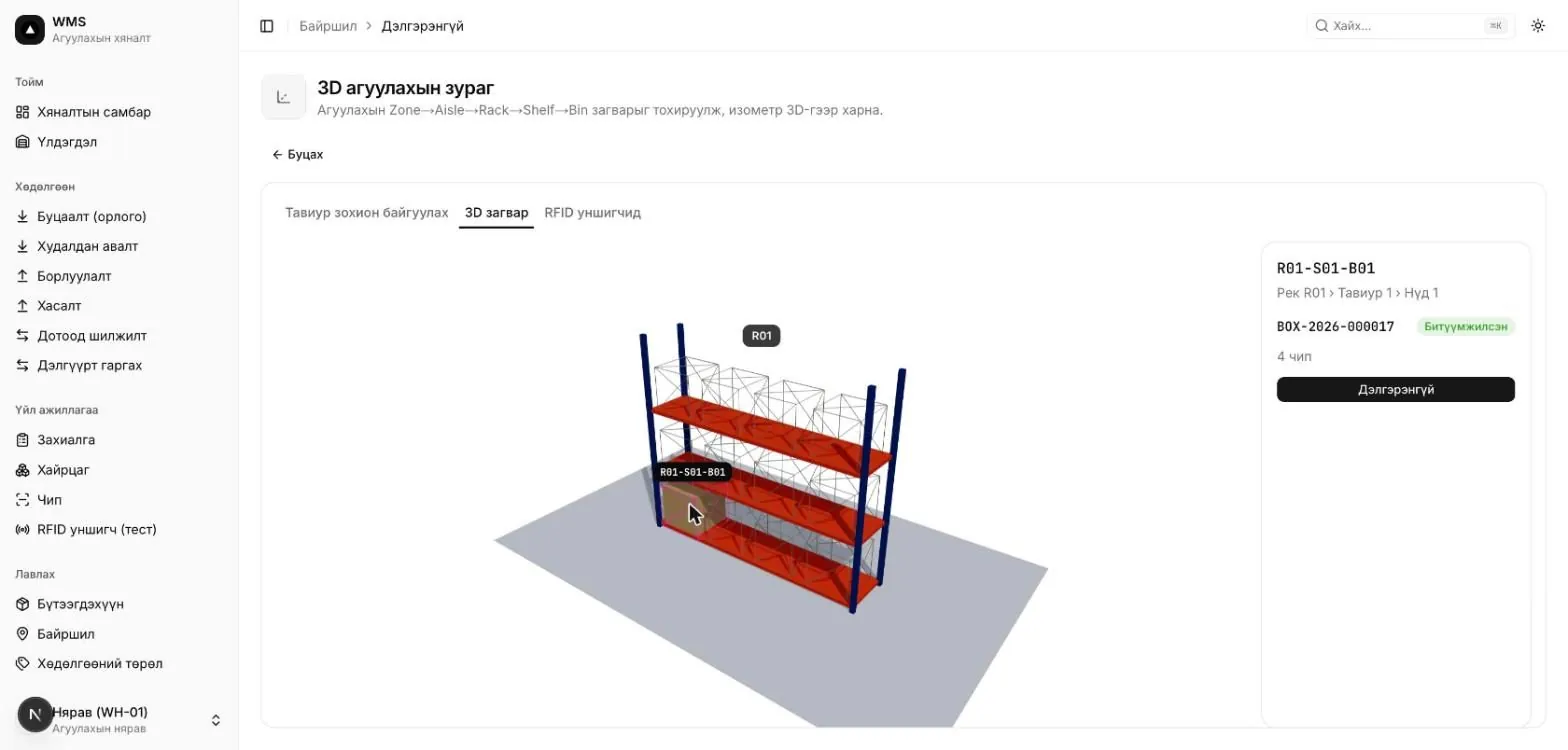
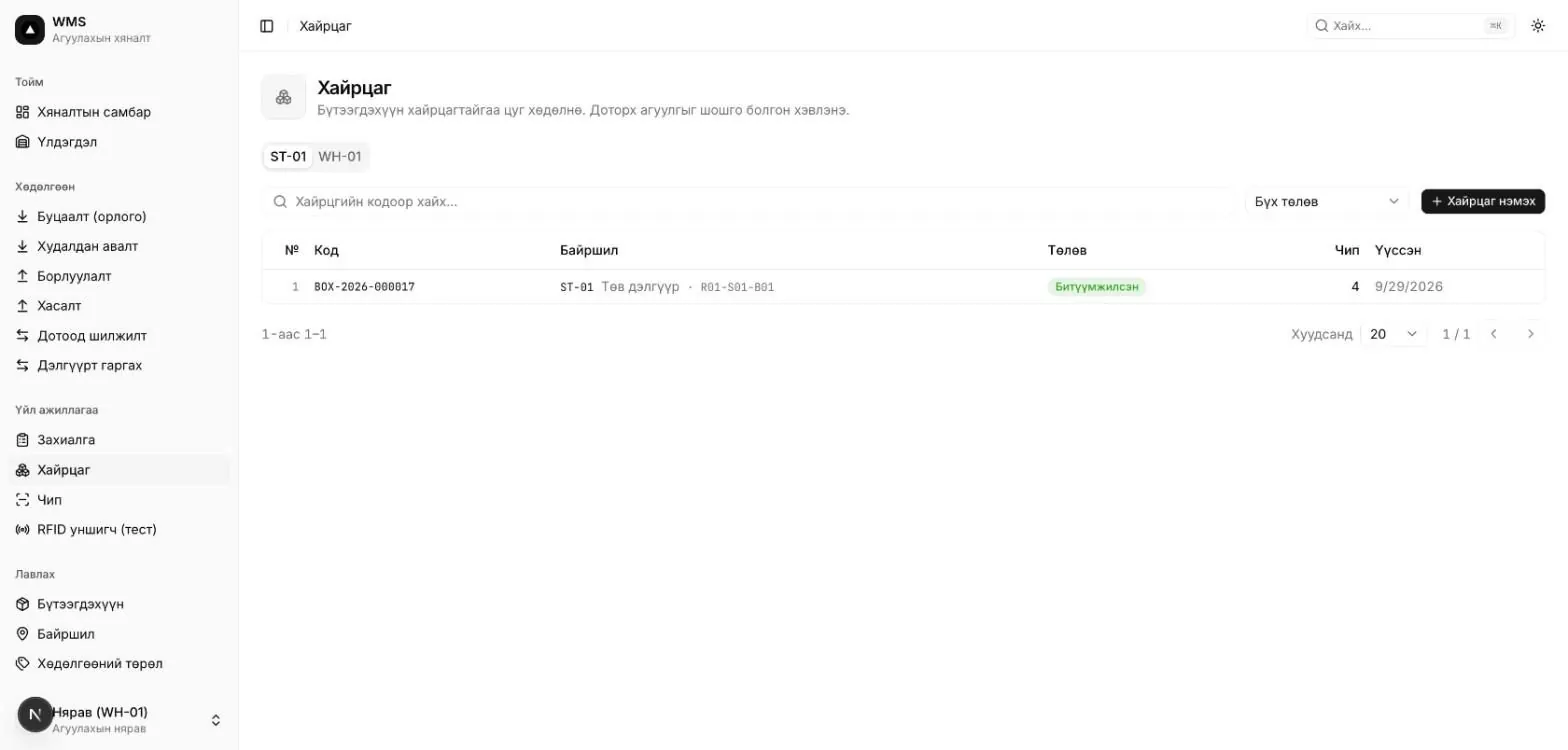
Click a location's code or name in the list to open its 3D warehouse view. The structure follows a Rack → Shelf (row) → Bin (column) hierarchy. Each bin has a code in the form R01-S01-B01 (rack R01, shelf 1, bin 1).
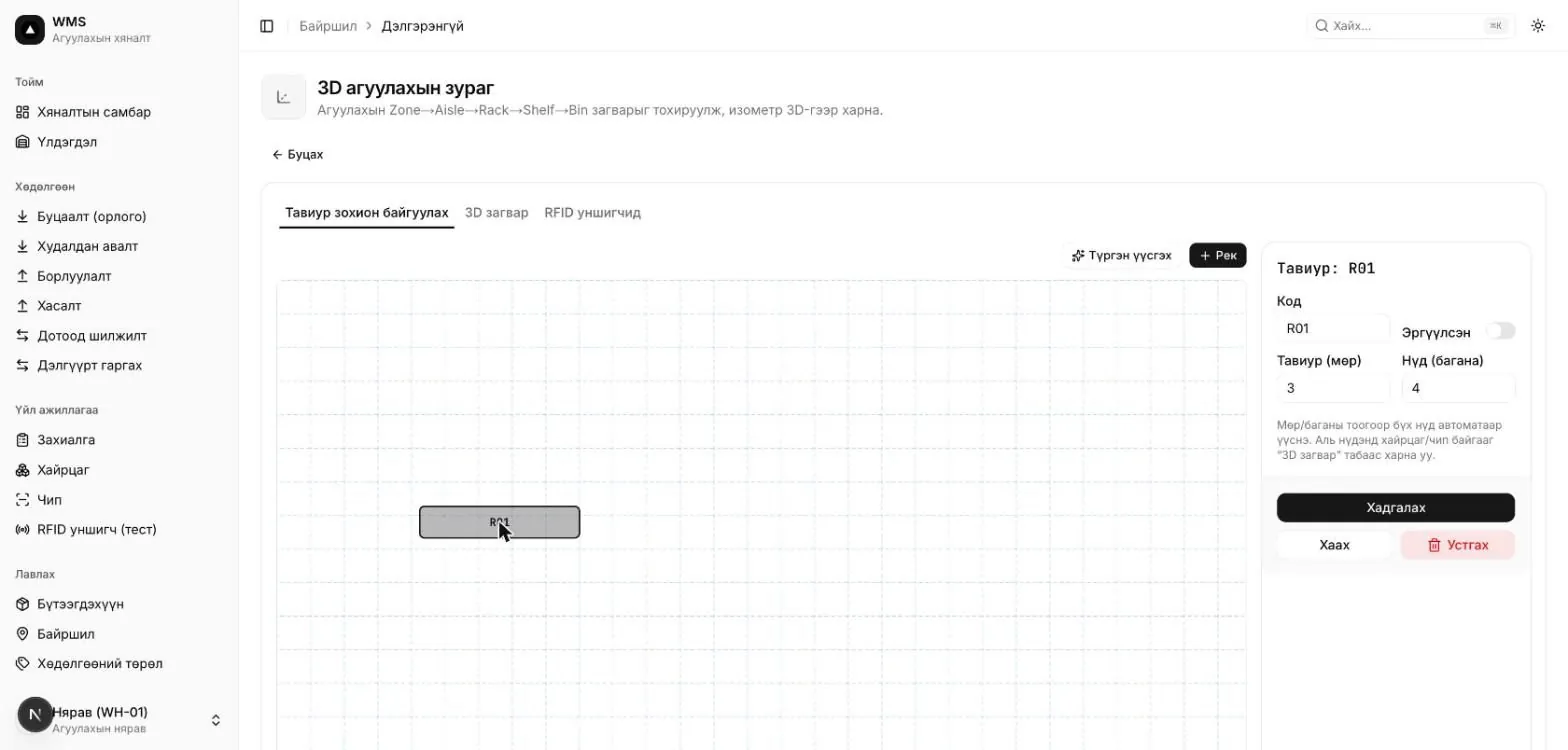
The 3D model tab shows racks in isometric 3D. Bins that hold boxes or chips are highlighted in color. Click a bin to see its code, location path, and the number of boxes and chips in it on the right. The Details button opens the box page.
BOX-2026-000017 (4 chips) sits in bin R01-S01-B01. Interactive model — drag to rotate, then select a bin.A manager uses a request to tell the storekeeper which products to move, how many, and from which location to which. When carrying it out, the storekeeper must match the movement contents exactly to the request.
Operations → Requests lists every request with its number (RQ-2026-000001), movement type, direction, route, total quantity and status. You can filter by location, direction, type and status.
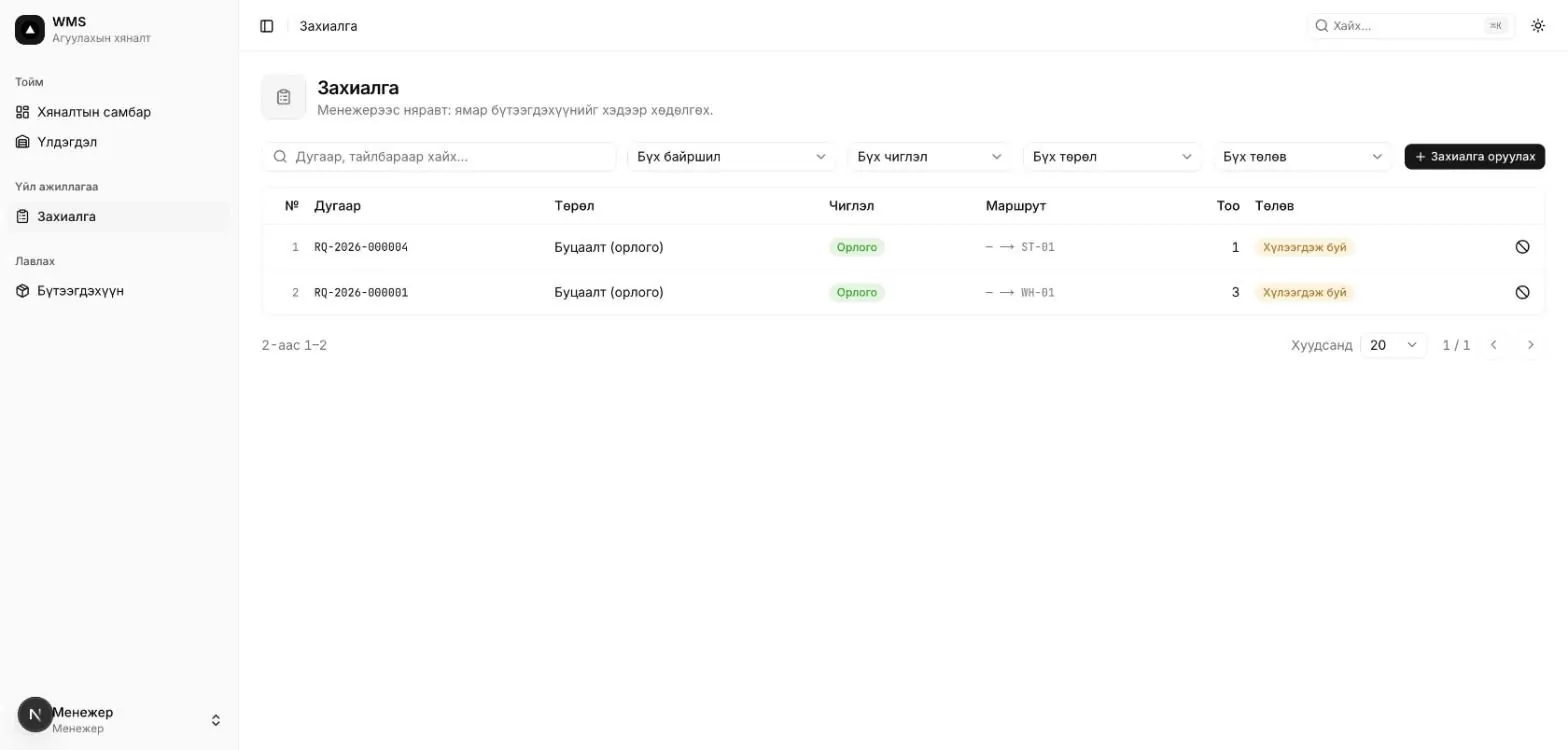
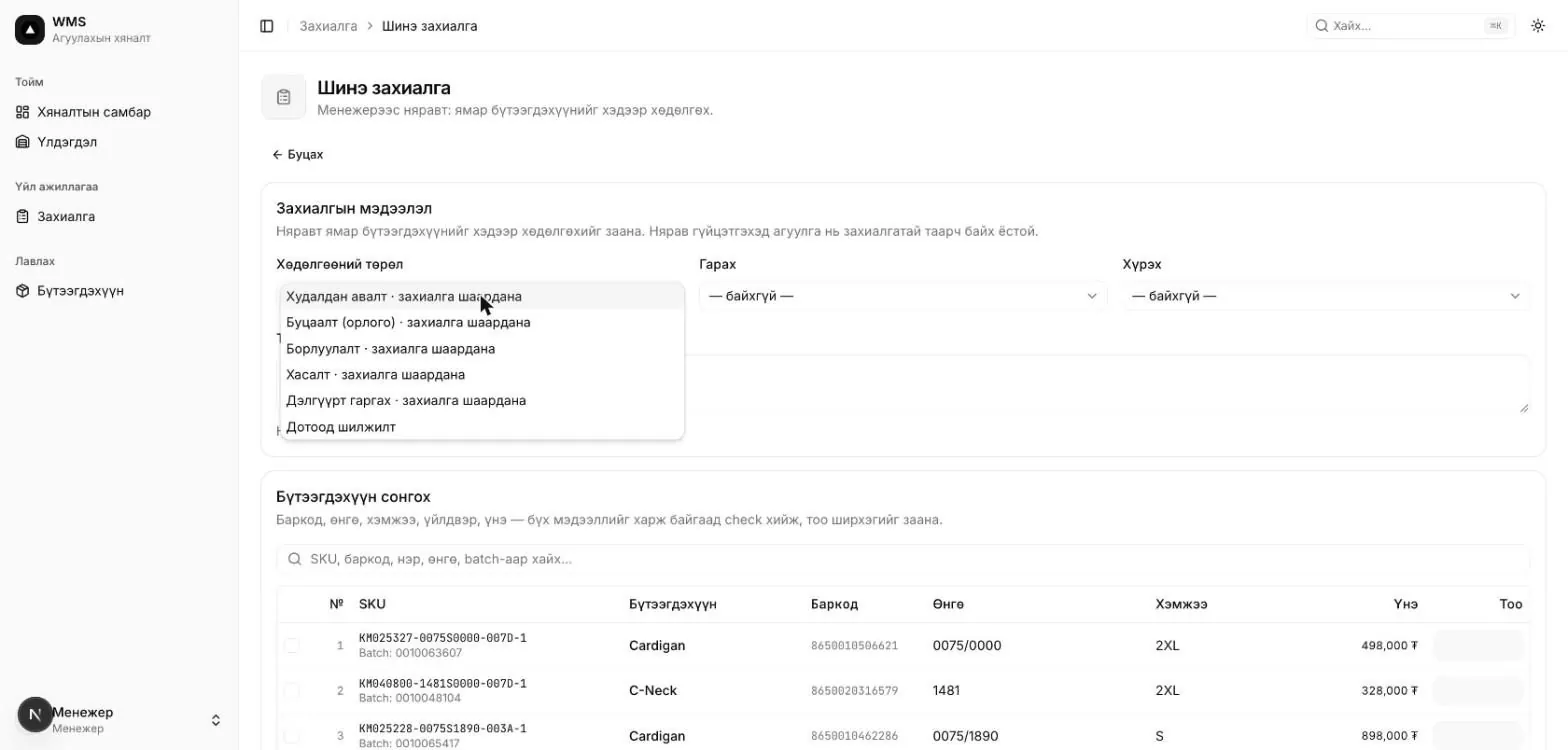
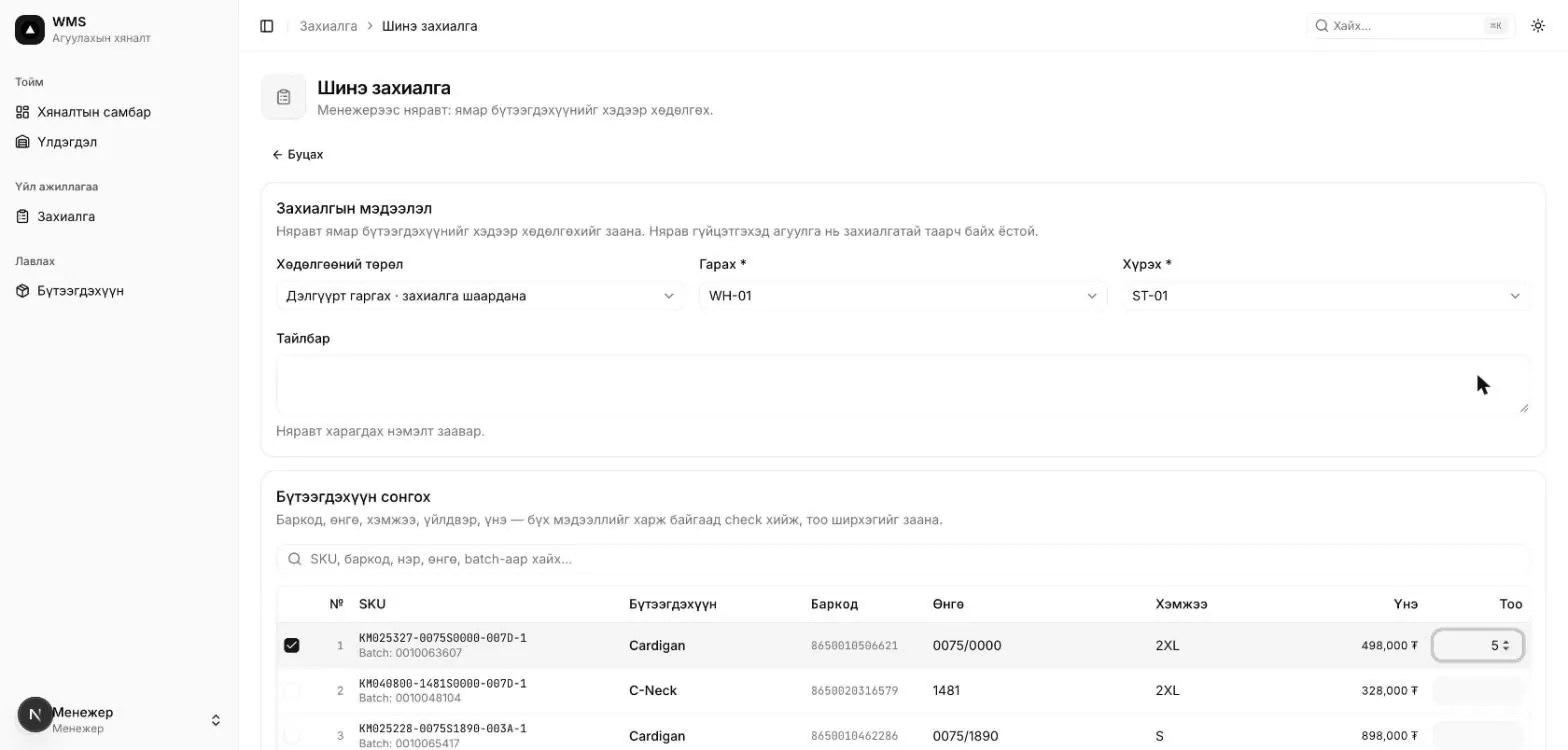
WH-01 → ST-01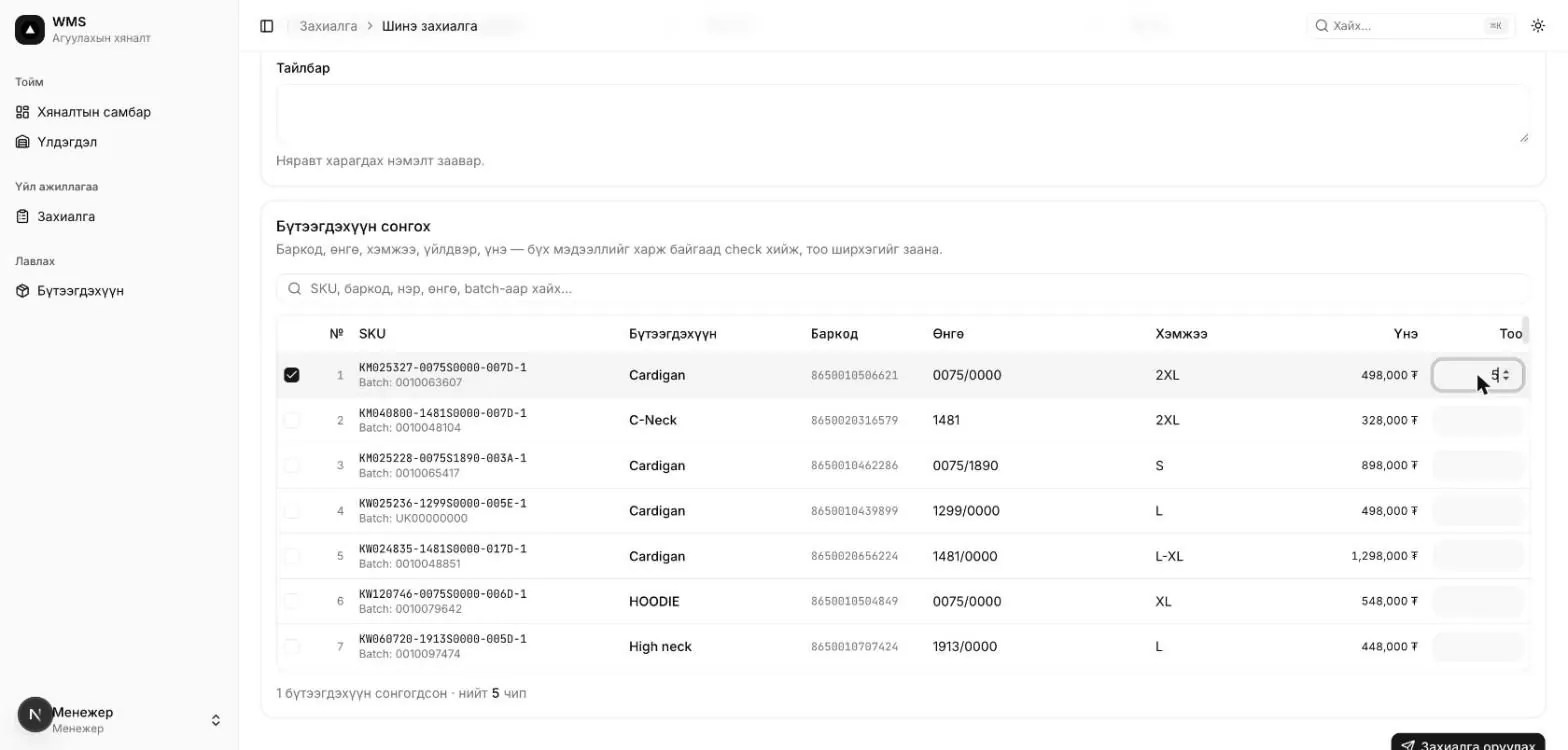
| Movement type | Direction | Order |
|---|---|---|
| Purchase | Inbound | Required |
| Return (inbound) | Inbound | Required |
| Sale | Outbound | Required |
| Write-off | Outbound | Required |
| Ship to store | Internal | Required |
| Internal transfer | Internal | Not required. The storekeeper creates it |
Click a number in the list to open its details. They show the type, route, total quantity, creator, notes, the requested product lines, and the movements created from the request with their statuses.
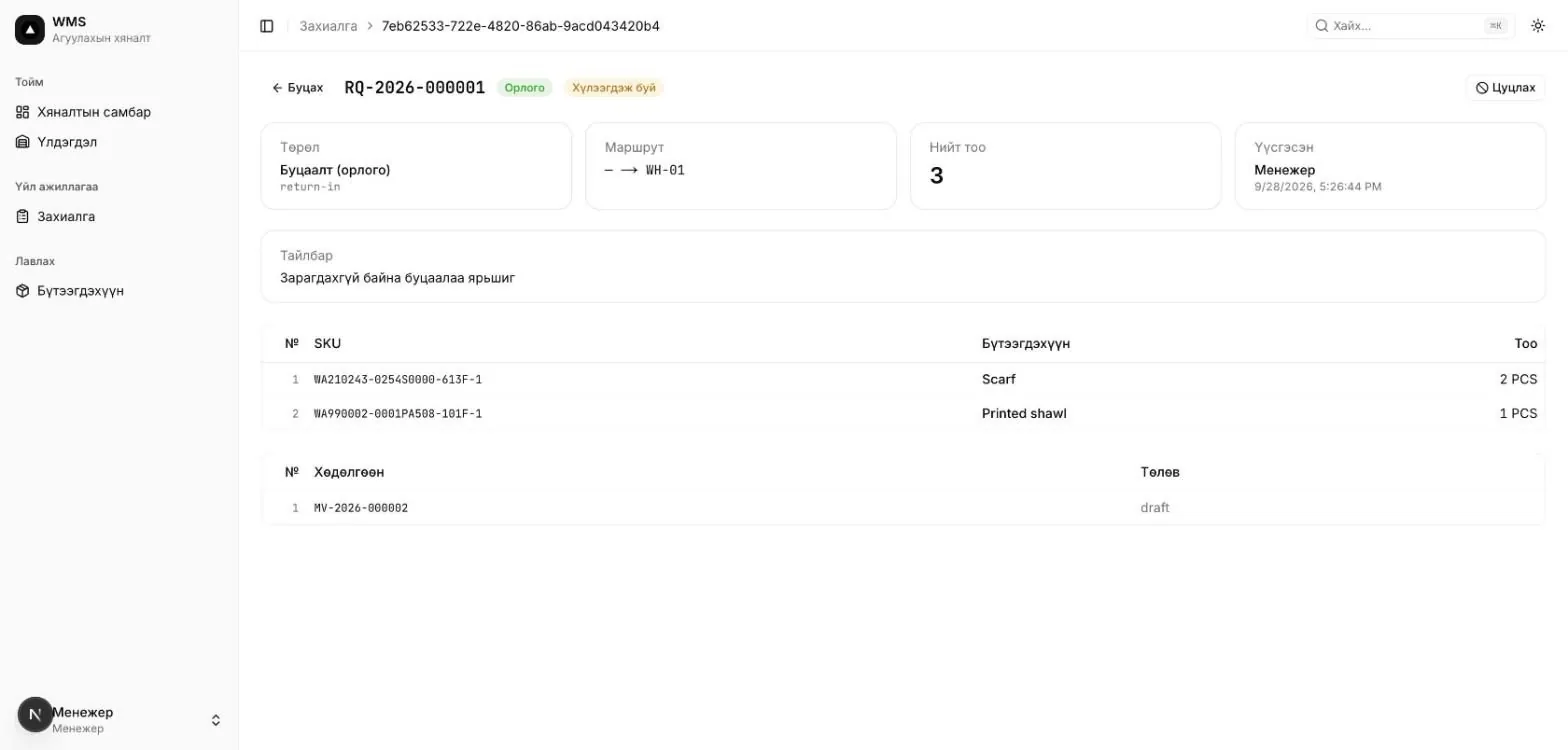
RQ-2026-000001 with draft movement MV-2026-000002 linked to itGoods move between locations by box. The storekeeper first creates a draft movement, adds the boxes, then confirms it. On confirmation, the location and status of the boxes and chips are updated.
In the Movements group of the left menu, each type has its own entry. The arrow shows the direction: ↓ inbound, ↑ outbound, ⇄ internal. On the All movements page, filter by type and status, and search by number or notes.
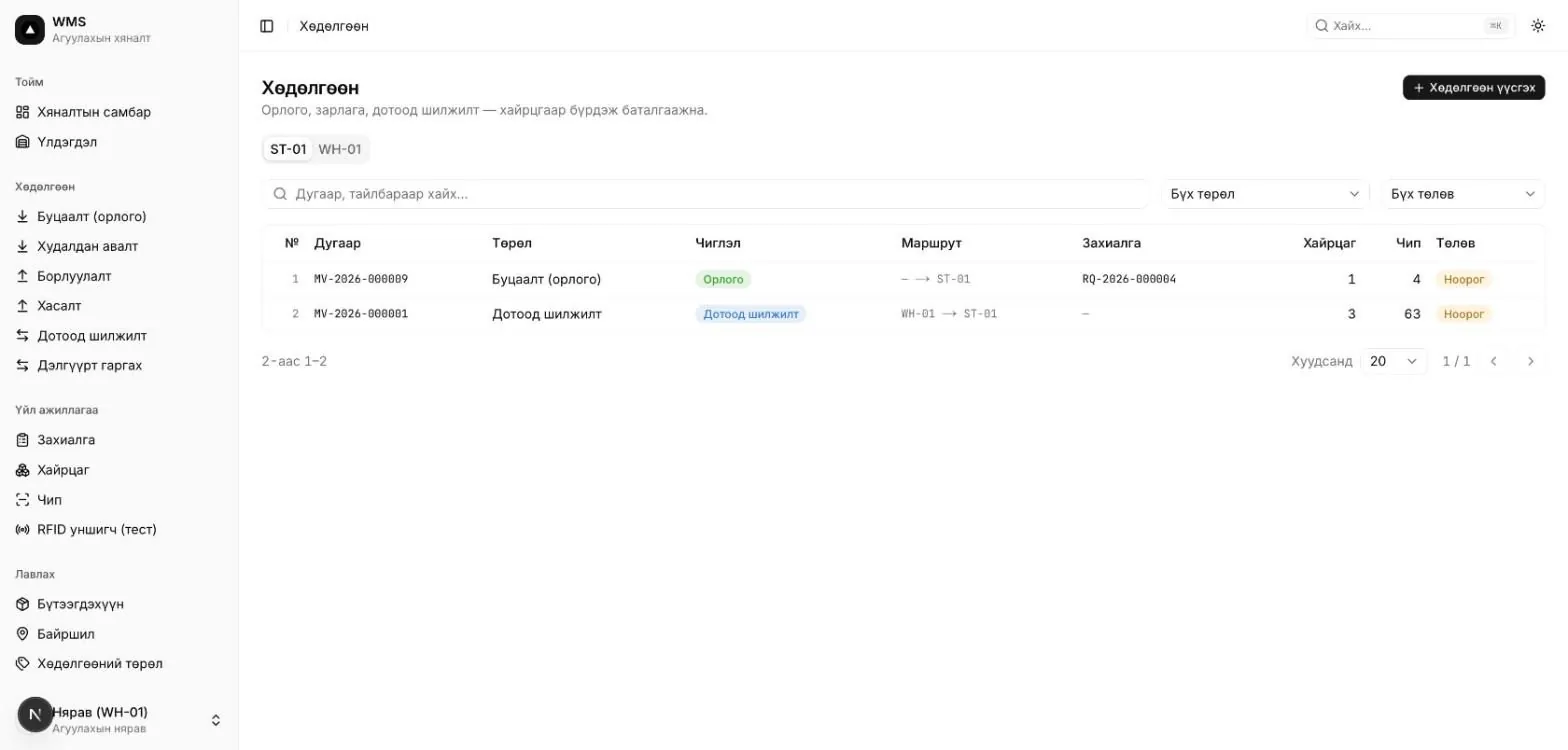
ST-01 / WH-01 tabs appear.| Direction | From location | To location | On confirmation |
|---|---|---|---|
| Inbound | — | Required | Box moves to the destination and is sealed |
| Outbound | Required | Optional | Box and chips change to Shipped |
| Internal | Required | Required, must differ from the source | Box moves to the destination and is sealed |
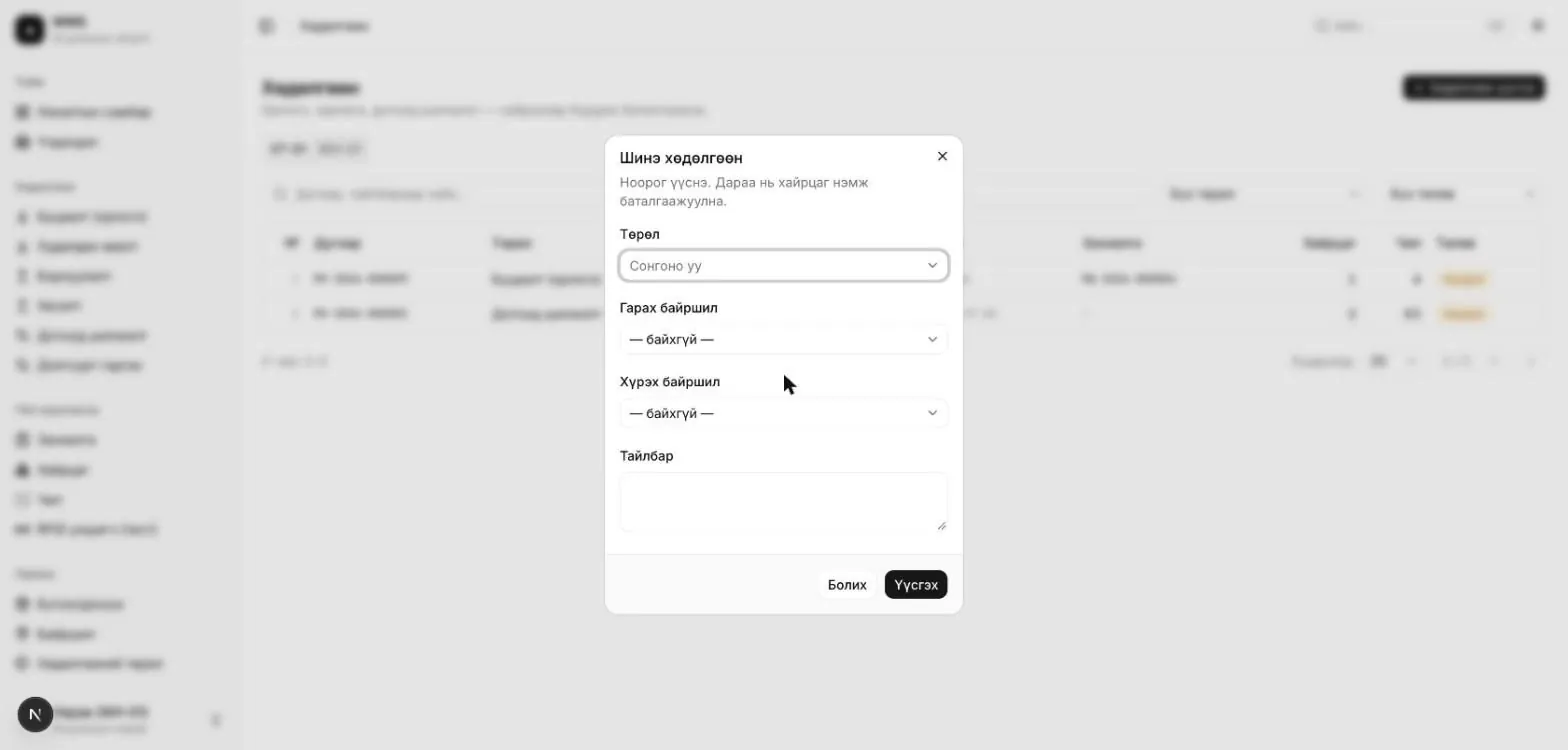
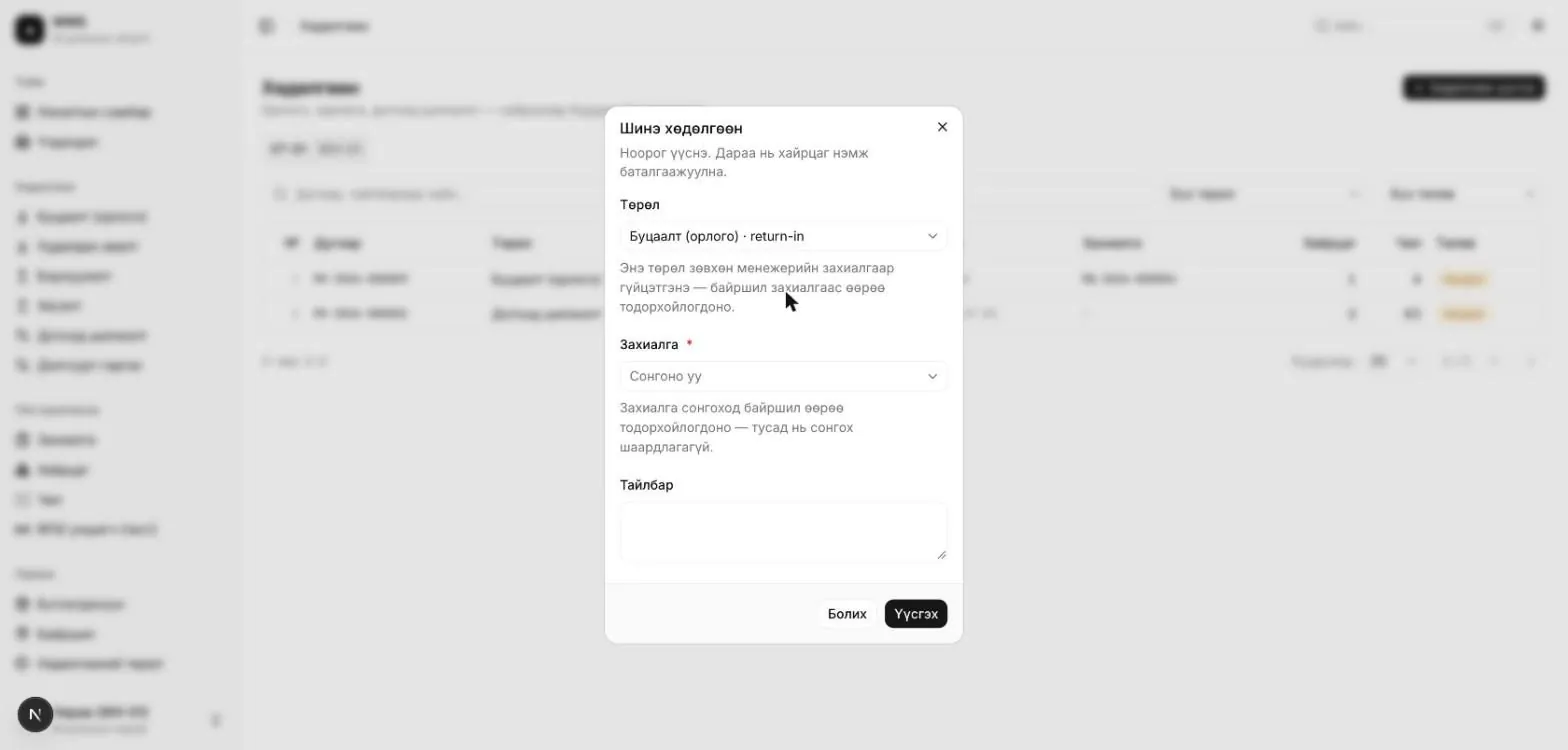
Click a number in the list to open the movement details.
Operations → Boxes lists all boxes with their code, location (including the shelf bin, e.g. ST-01 · R01-S01-B01), status and chip count. Create a new box with + Add box; its code is assigned automatically. On the box details page you can add or remove chips by EPC/TID, seal or reopen the box, and print its label.
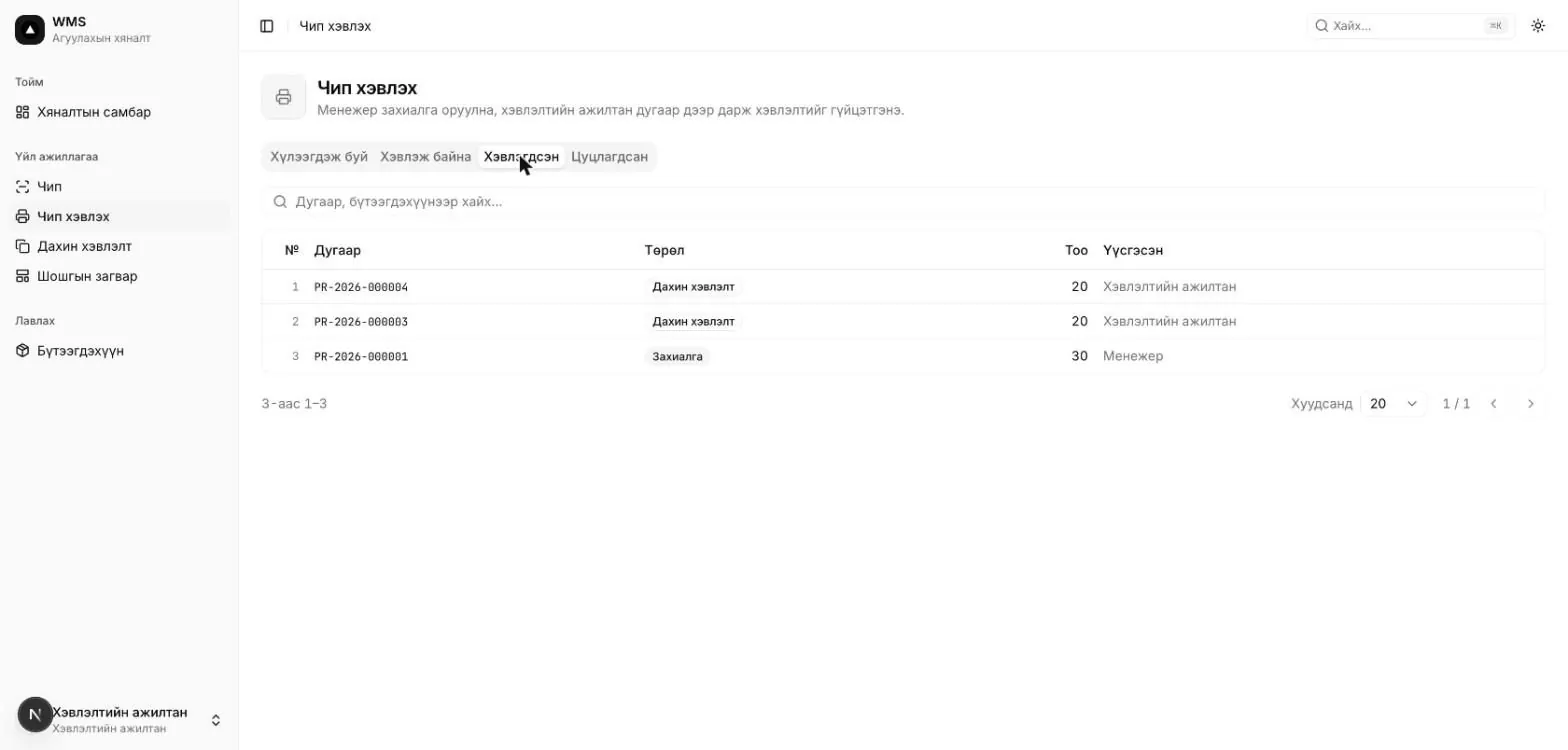
This section prints RFID chip labels and assigns a unique EPC to every chip. When a print request comes in, the print operator carries it out.
<barcode>-<6-digit serial>, e.g. 8650010506621-000013. The serial increments per product, so EPCs never repeat, even when two print jobs run at the same time. The TID is the chip's unique factory number; it is read and recorded during printing.Operations → Print chips splits jobs into tabs by status: Pending, Printing, Printed, Cancelled. The Pending tab opens first. This is the print operator's work queue. Each row shows the number (PR-2026-000001), type (Request or Reprint), chip count and creator.
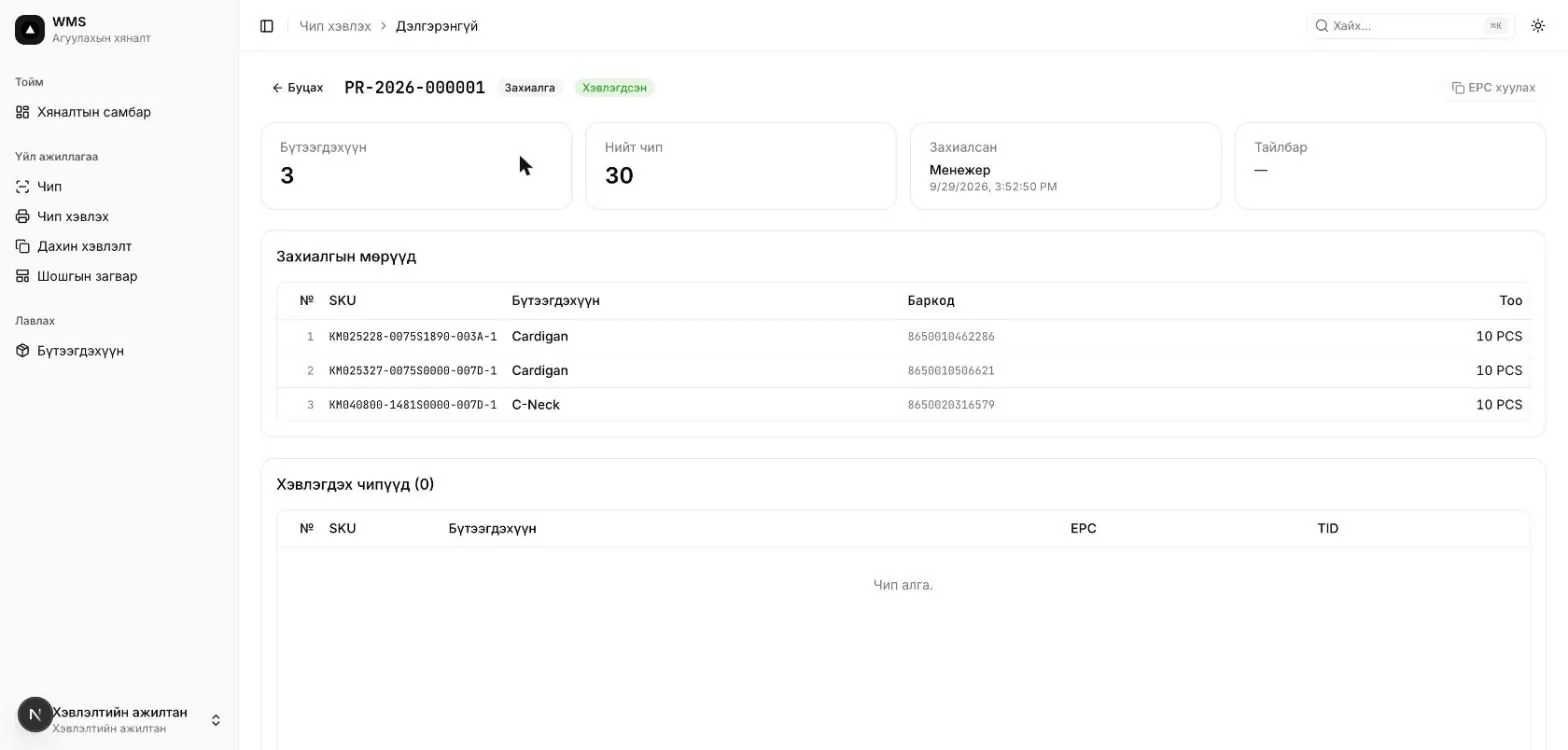
If a label is damaged or lost, the print operator can print a new one right away without waiting for a request.
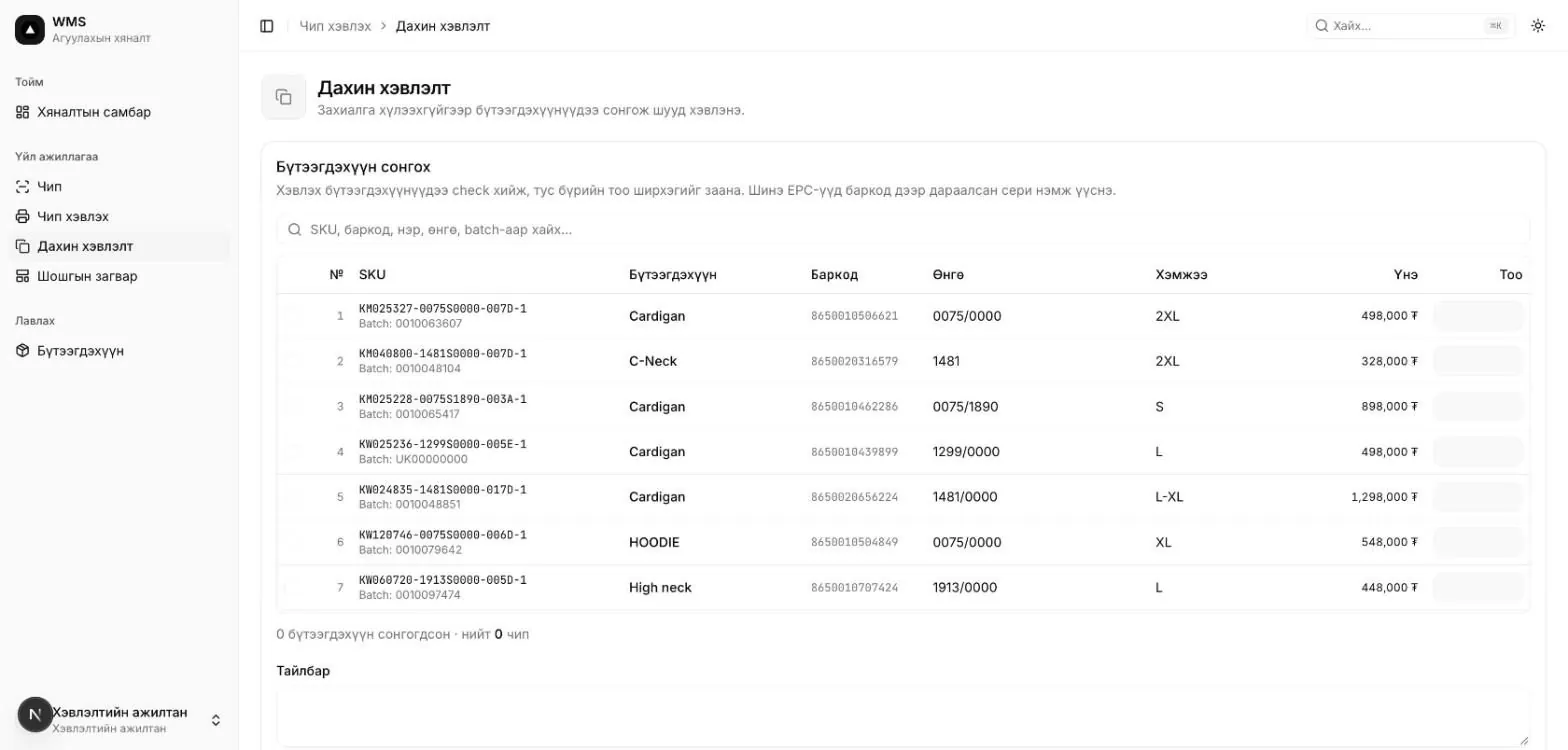
In Label templates, set what is printed on the label and where. The list shows each template's name, size (mm), number of elements, times used and status. Use the row's ⋯ menu to Edit, Duplicate or Delete. To make a similar template, the easiest way is to duplicate an existing one and change its size.
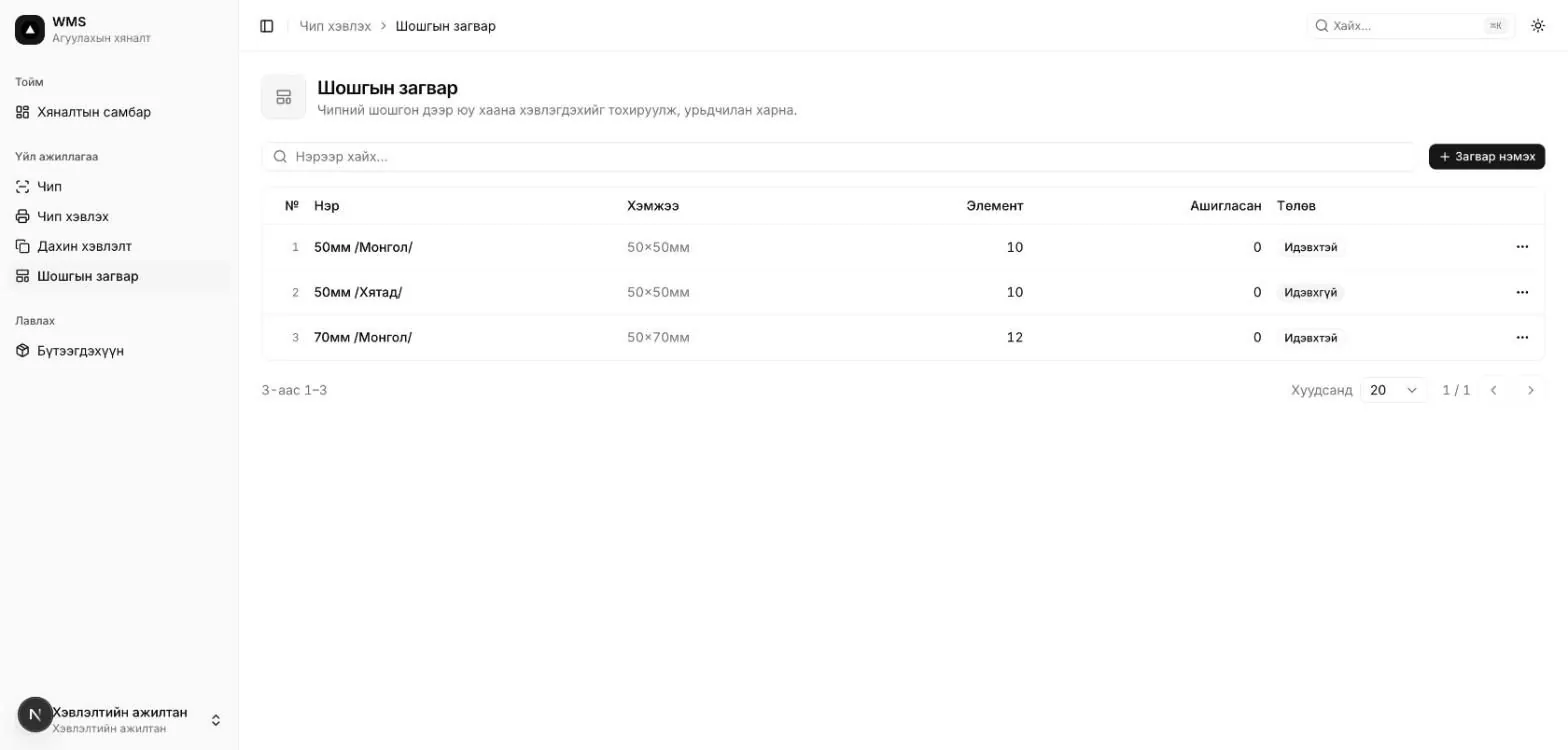
Statuses used across the system.
| Status | Meaning |
|---|---|
| Printed | Label printed, not yet attached to an item |
| Attached | Attached to an item, not yet in a box |
| In box | Inside a box |
| On shelf | Placed directly in a shelf bin without a box |
| Shipped | Left via an outbound movement |
| Lost | Not found |
| Void | Cancelled or damaged |
| Print error | TID not recorded during printing |
| Status | Meaning |
|---|---|
| Pending | Waiting for the request or print job to be carried out |
| Draft | Movement created but not confirmed. Boxes can still be added or removed |
| Printing | Chips are being sent to the printer |
| Confirmed / Printed | Completed. Can't be changed |
| Fulfilled | Movement confirmed against the request |
| Cancelled | Cancelled |
| Status | Meaning |
|---|---|
| Open | Chips can be added or removed |
| Sealed | Arrived at a location via a movement; contents locked |
| Shipped | Left via an outbound movement |